

Change language, dark mode and screenshot privacy
You can use SmartPOS Shopper in 17 languages, choose light or dark mode, and stop screenshots of your receipts with Hide receipts in screenshots. All three settings live in the Account tab and apply to every store. This page explains each one and where else you can change the language.
How do I change the app language?
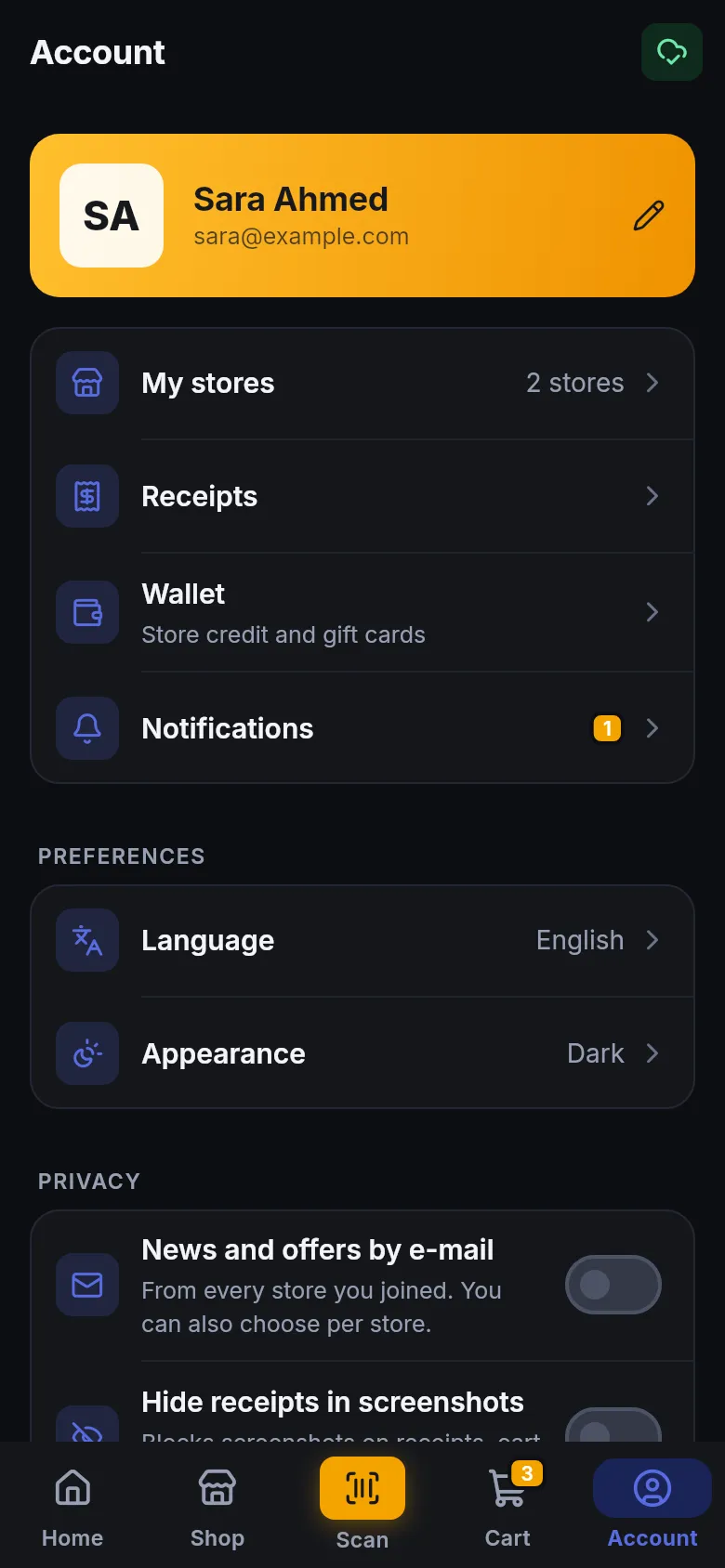
Section titled “How do I change the app language?”- Open Account.
- Under Preferences, tap Language.
- Pick a language from the list. The app switches at once.
You can also change the language:
- on the Sign in screen, with the language button at the top, before you sign in;
- on your Profile screen, in the Language field.
Available languages
Section titled “Available languages”English, Urdu (اردو), Arabic (العربية), Hindi, Bengali, Spanish, French, German, Turkish, Indonesian, Portuguese, Russian, Chinese, Persian (فارسی), Malay, Vietnamese and Albanian.
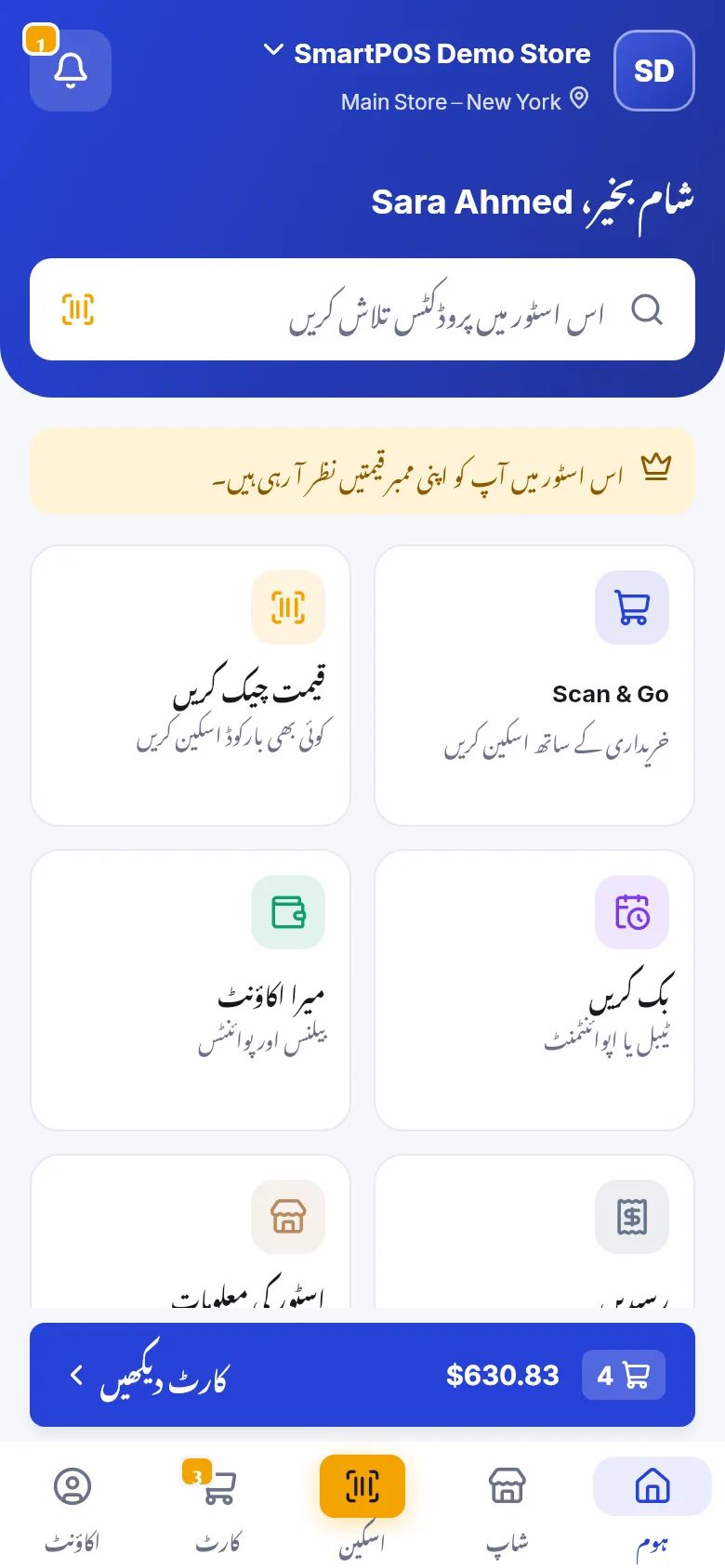
- Urdu, Arabic and Persian are laid out right to left. Prices, quantities and codes stay left to right so they read correctly.
- Product names and descriptions are written by each store and are not translated.
- Your language is saved with your account, so messages the stores’ system sends you in the app, such as notifications and automatic chat answers, use it where available.
How do I switch to dark mode?
Section titled “How do I switch to dark mode?”- Open Account.
- Under Preferences, tap Appearance.
- Choose Same as phone, Light or Dark.
Same as phone follows your phone’s own dark-mode setting, including any schedule you set there. Every store look works in light and dark.
What does “Hide receipts in screenshots” do?
Section titled “What does “Hide receipts in screenshots” do?”This setting under Account › Privacy “Blocks screenshots on receipts, cart and account pages.” When it’s on:
- Your phone blocks screenshots and screen recordings of those pages.
- The pages are also hidden in the recent-apps preview of your phone.
- Other screens of the app are not affected.
Turn it on if other people use your phone, or if you don’t want amounts and invoice details to end up in your photo gallery by accident. To send a receipt to someone, use Share or Download PDF on the receipt instead. See Receipts.
Frequently asked questions
Section titled “Frequently asked questions”Which languages does SmartPOS Shopper support?
17 languages - English, Urdu, Arabic, Hindi, Bengali, Spanish, French, German, Turkish, Indonesian, Portuguese, Russian, Chinese, Persian, Malay, Vietnamese and Albanian. Urdu, Arabic and Persian are shown right to left.
Why are product names still in English after I changed the language?
The app's buttons and messages change language, but product names, descriptions and store texts are written by each store. They appear in the language the store used.
How do I turn on dark mode?
Go to Account › Appearance and choose Dark. Choose Same as phone to follow your phone's own light or dark setting.
Why can't I take a screenshot of my receipt?
You have Hide receipts in screenshots switched on. It blocks screenshots on receipts, cart and account pages. Switch it off under Account › Privacy, or use Share or Download PDF on the receipt instead.
Do numbers and prices also change to right-to-left in Urdu or Arabic?
No. Text runs right to left, but prices, quantities and codes stay left to right so amounts are always easy to read.