

Find your way around the SmartPOS Shopper app
SmartPOS Shopper has five tabs at the bottom: Home, Shop, Scan, Cart and Account. Home, Shop, Scan and Cart always show the store you picked at the top; Account holds everything about you across all stores. This tour explains each tab, the store tiles and the small signs you see along the way.
The current store: always at the top
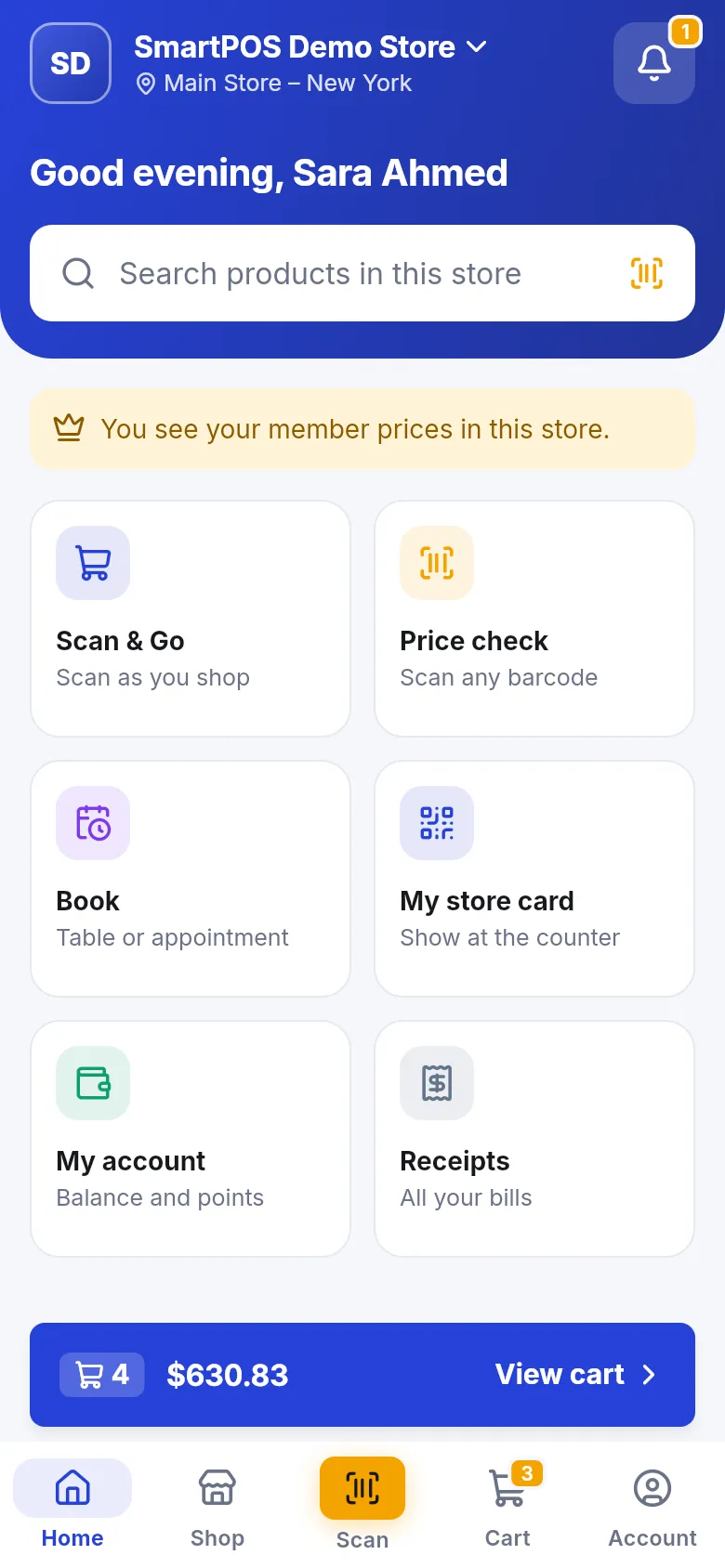
Section titled “The current store: always at the top”The store name at the top of Home (with the location under it, for example “Main Store – New York”) is your current store. Tap it to open Your stores and switch to another store you joined, or tap Add a store to join a new one.
Prices, stock, the cart and Scan & Go always belong to the current store. If a store has several locations, the app may ask Choose location first, because each location has its own menu, stock and prices.
Home: the store’s front door
Section titled “Home: the store’s front door”Home greets you (“Good evening, …”) and gives you:
- Search products in this store, with a barcode button to scan instead of typing.
- A banner that tells you your price level: You see your member prices in this store. or, while you wait, Your membership is waiting for the store’s approval. Until then you see shelf prices.
- Tiles for what this store offers. The order and look depend on the store; common ones:
| Tile | Shows when the store offers | Opens |
|---|---|---|
| Order (Pickup · Delivery · Dine-in) | Ordering in the app | Place an order |
| Scan & Go – Scan as you shop | Scan & Go | Scan & Go |
| Price check – Scan any barcode | Price checks | Price check |
| My orders – Status of your orders | Ordering in the app | Track your orders |
| Book, Reserve a table or Book a service | Table reservations or appointments (approved members) | Book a table or appointment |
| My store card – Show at the counter | Every store you joined | My store card |
| My account – Balance and points | Every store that approved you | Your account at a store |
| Receipts – All your bills | Digital receipts | Receipts |
| Store info – Hours and locations | Most stores, to fill the last spot | Store page |
Hotels, gyms and repair shops add their own tiles, such as Book a room, Gym or Repair status. See Rooms, gym and repairs.
When your cart has items, a blue bar at the bottom shows the number of items and the total with View cart.
Shop: browse the store
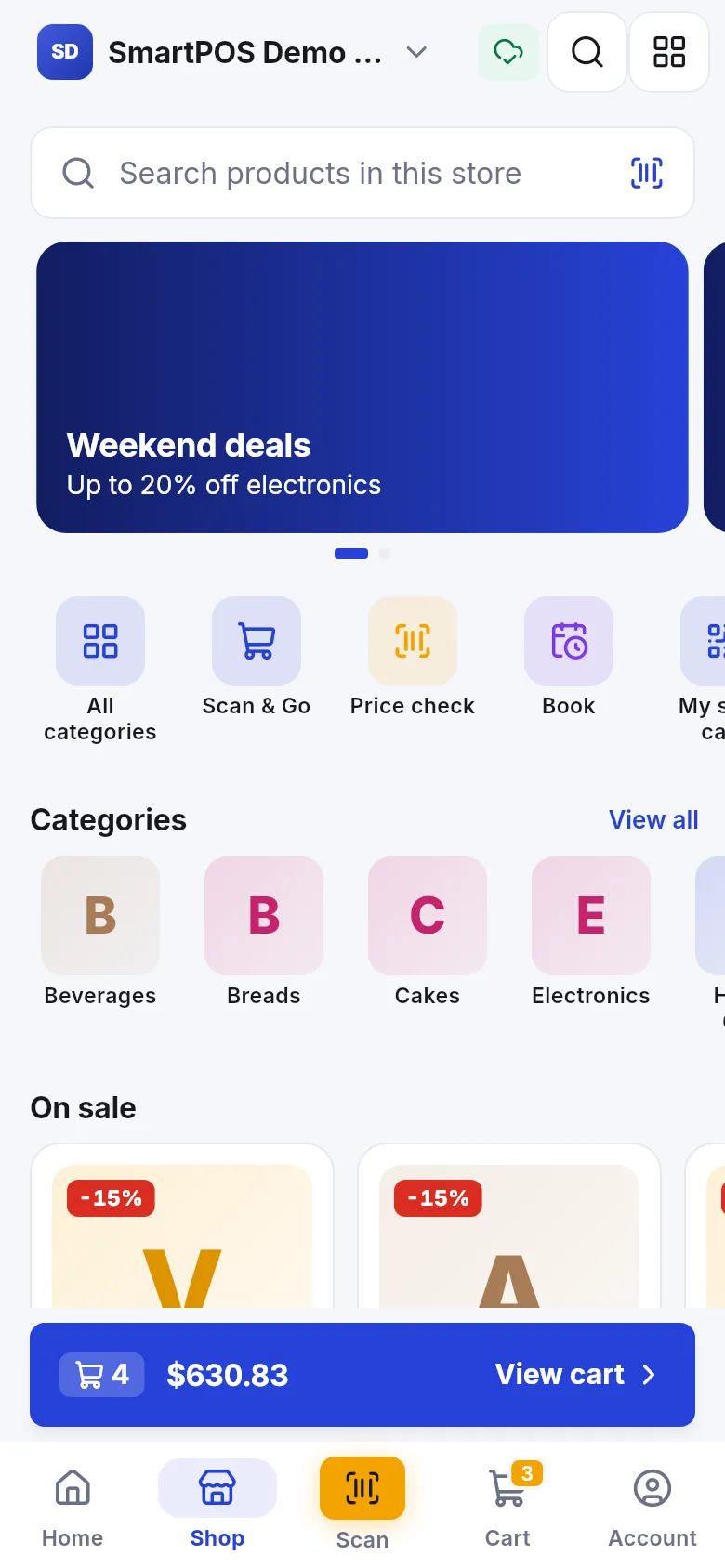
Section titled “Shop: browse the store”The Shop tab shows the store’s banners, a Quick menu, Categories and strips like On sale and new arrivals, then All products with sorting and filters. Its look depends on the store’s chosen style. See Browse and search products and Store looks.
Scan: price check and Scan & Go
Section titled “Scan: price check and Scan & Go”The orange button in the middle opens the scanner. Switch between Price check (see a product’s price) and Scan & Go (each scan goes into your cart). Tap Type a code if the barcode won’t scan.
Cart: one cart per store
Section titled “Cart: one cart per store”Everything you add, from the Shop tab or by scanning, ends up in the same Cart for that store. From there you Checkout for an order or tap I’m at the counter for Scan & Go. See Your cart.
Account: you, across all stores
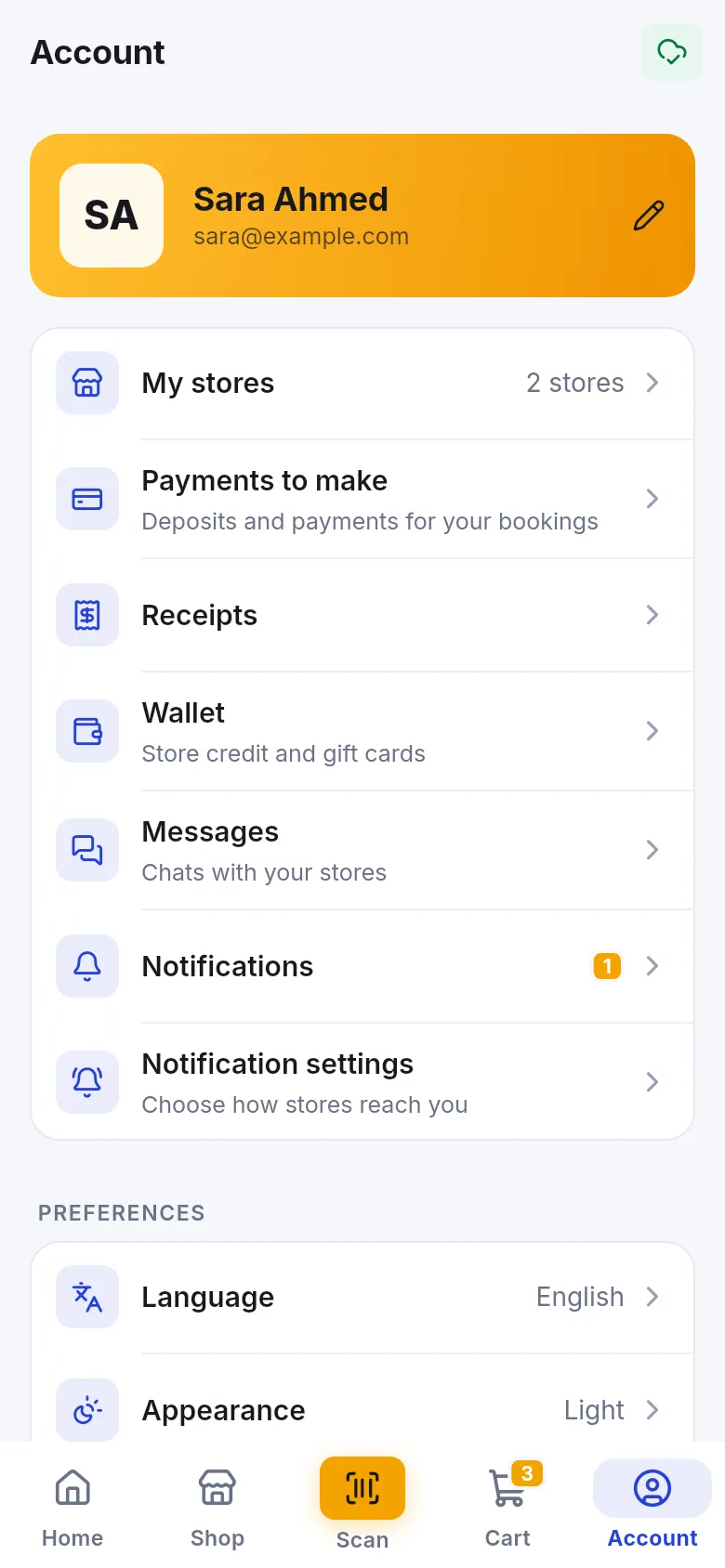
Section titled “Account: you, across all stores”Account shows your name and e-mail at the top (tap it to Edit profile), then:
- My stores, My orders, Payments to make, Receipts, Wallet (store credit and gift cards), Messages (chats with your stores), Notifications and Notification settings.
- Preferences: Language and Appearance.
- Privacy: News and offers by e-mail and Hide receipts in screenshots.
- Help & about, Sign out and Delete my account.
Some rows appear only when they apply, for example My orders only when one of your stores takes orders in the app.
Frequently asked questions
Section titled “Frequently asked questions”What are the five tabs at the bottom of the app?
Home, Shop, Scan, Cart and Account. Home shows the current store's tiles, Shop lists its products, Scan opens price check and Scan & Go, Cart holds what you picked, and Account has your stores, receipts, wallet, messages and settings.
How do I switch to another store?
Tap the store name at the top of Home or Shop. A list of your stores opens; tap the one you want. Everything on Home, Shop, Scan and Cart then belongs to that store.
Why are the tiles on Home different for each store?
Each store decides what it offers in the app. A restaurant may show Reserve a table, a salon Book a service and a supermarket Scan & Go. The tiles change when you switch store.
What does "You see your member prices in this store" mean?
You are an approved member of this store, so prices in the app already include any member price the store gives you. If you are waiting for approval, you see shelf prices until the store approves you.
Where are my receipts?
Open Account › Receipts, or tap the Receipts tile on a store's Home screen. Receipts lists purchases from every store you joined, newest first.
What is the bell at the top of Home?
It opens Notifications, your in-app inbox of receipts, order updates and store replies. The number shows how many you haven't read yet.