

Install the SmartPOS Shopper app on Android
To install the SmartPOS Shopper app, get it from Google Play on your Android phone or tablet. Installing takes about a minute. After that you sign in with your e-mail and join your first store. The app is free and works on Android phones and tablets.
Before you start
Section titled “Before you start”- An Android phone or tablet. An iPhone version is not available yet.
- An internet connection (Wi-Fi or mobile data).
- An e-mail address you can open on this phone, because the sign-in code goes there.
How do I install SmartPOS Shopper?
Section titled “How do I install SmartPOS Shopper?”- On your Android phone, open SmartPOS Shopper on Google Play, or open Google Play and search for SmartPOS Shopper.
- Check it is the right app: the icon is orange with blue tiles and a small shopping bag.
- Tap Install and wait until it finishes.
- Tap Open.
What do I see the first time I open it?
Section titled “What do I see the first time I open it?”The first screen is Sign in: “Your stores, in your pocket”. You can sign in with your e-mail straight away, scan a store’s QR poster first, or tap Look around as a guest to see what the app does before you sign in.
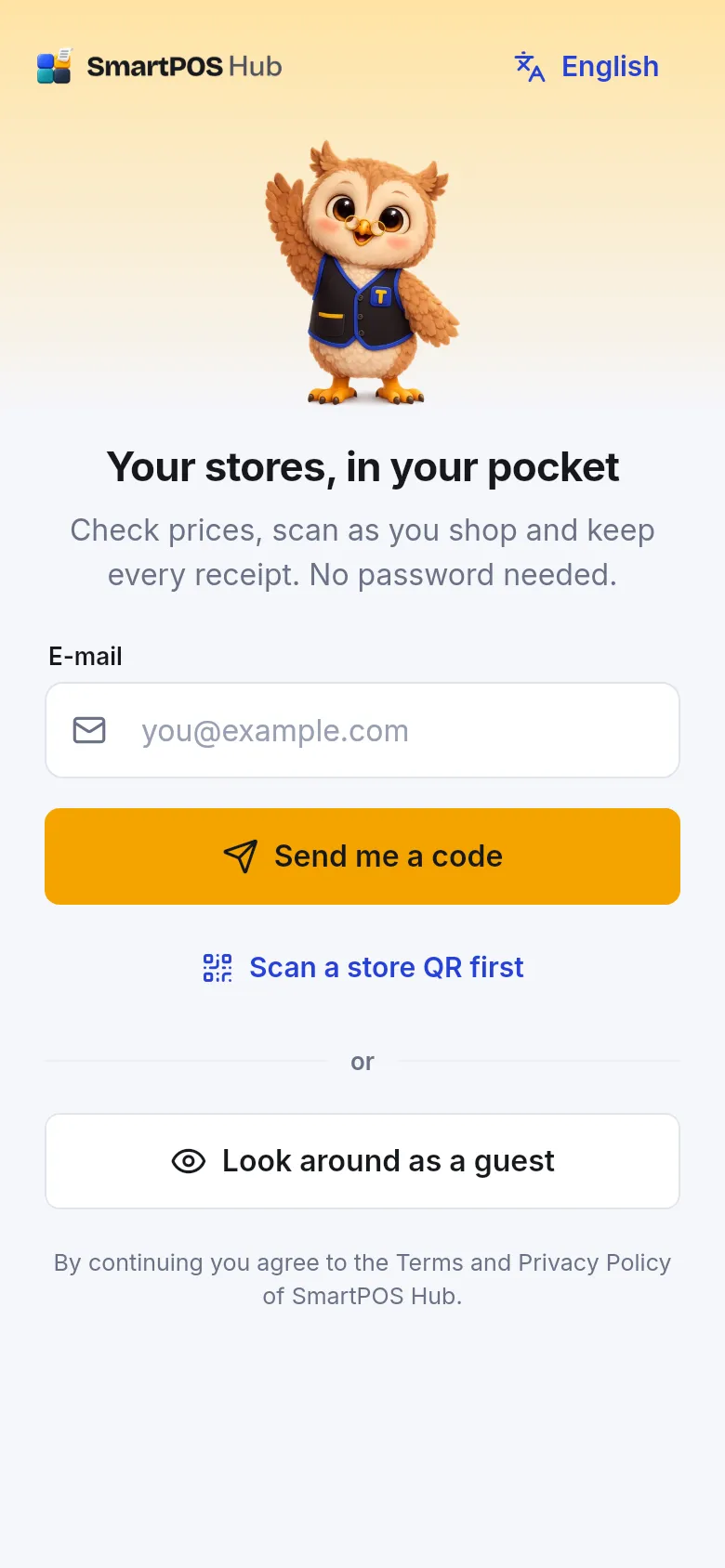
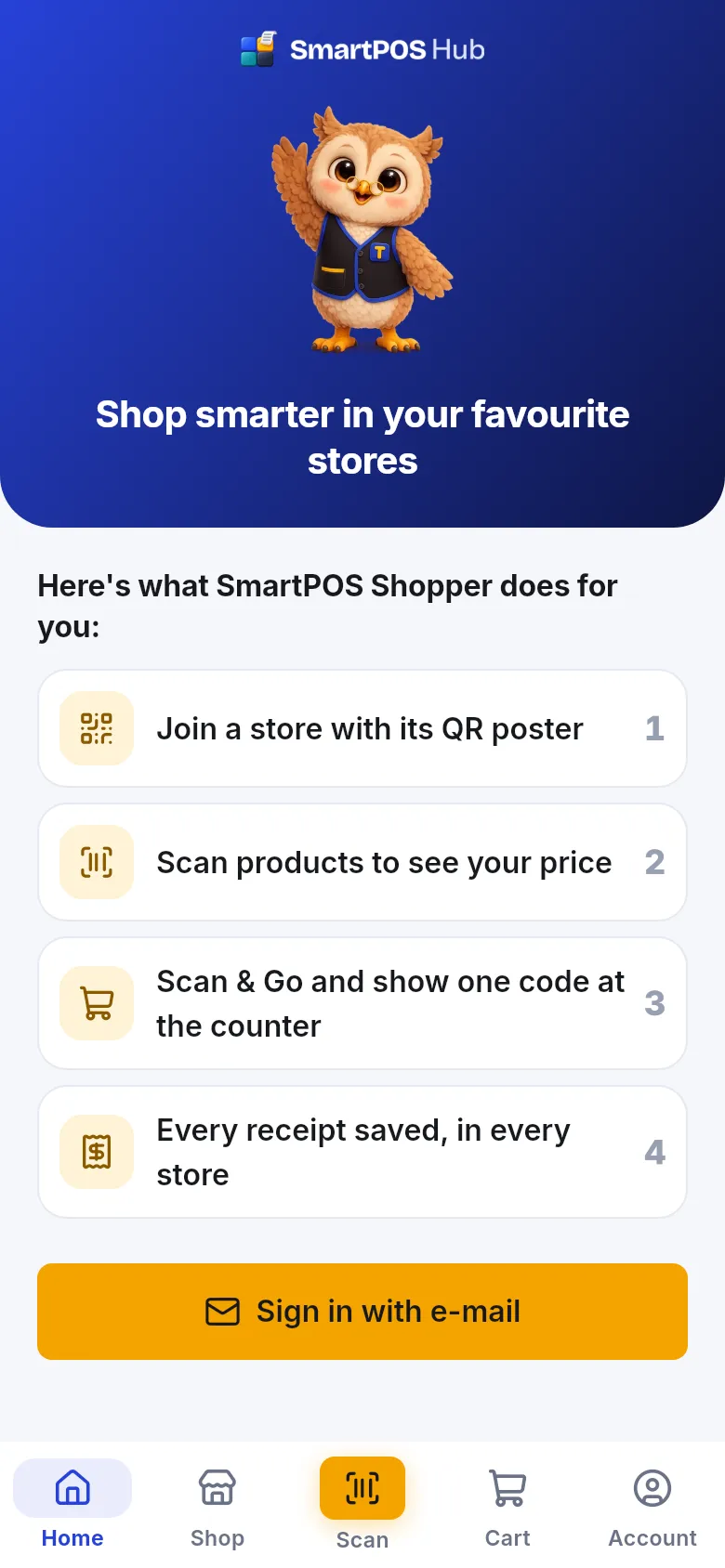
The language button at the top of the sign-in screen changes the app language before you start. See Language and dark mode.
Which permissions does the app ask for?
Section titled “Which permissions does the app ask for?”The app asks only when you first use a feature, never all at once on the first launch.
| Permission | When it is asked | What it is for |
|---|---|---|
| Camera | The first time you scan a QR poster, a barcode or a gift card | Scanning. Pictures are not saved. |
| Notifications | Once, a few seconds after you sign in (“Get updates on this phone”) | Order, booking and chat updates. Tap Not now to skip. |
| Location | Only when you tap Near me in Find stores | Sorting stores by distance for that search. |
| Photos | When you add a profile photo, a chat photo or a payment receipt | Picking the photo you choose. |
You can change any of these later in your phone’s settings. Turning one off only switches off that feature.
Tips and common mistakes
Section titled “Tips and common mistakes”- Install only from Google Play. Don’t install copies of the app from other websites.
- Low storage? Free some space and try again if the install stops halfway.
- Older Android version? If the install fails with “App not installed”, update your phone’s system software first.
What next?
Section titled “What next?”Frequently asked questions
Section titled “Frequently asked questions”Where do I download SmartPOS Shopper?
Open Google Play on your Android phone and search for SmartPOS Shopper, or open play.google.com/store/apps/details?id=com.smartposhub.shopper. Tap Install. The app is free.
Is there an iPhone version?
Not at the moment. SmartPOS Shopper runs on Android phones and tablets. An iPhone version is not available yet.
A website offered me a SmartPOS Shopper file to install. Should I use it?
No. Install SmartPOS Shopper only from Google Play. Files offered on other websites may be fake or outdated.
How big is the app and what does it need?
It is a normal-sized shopping app. It needs an internet connection for most things, the camera for scanning, and optionally notifications and your location for Near me. It asks for each permission only when you first use the feature.
How do I update the app?
Google Play updates it like any other app. To update by hand, open SmartPOS Shopper in Google Play and tap Update. Your account and stores stay.
The store gave me a link. Do I still need to install the app first?
The link opens a Join page for that store. If the app is not on your phone yet, the page shows a Get it on Google Play button. After installing, open the link again or type the store code shown on the page.