

Choose sizes, options and extras
Many products in SmartPOS Shopper come with options: a pizza size, a sauce, extra toppings, a T-shirt size, or a message on a cake. This page explains how to choose sizes, options and extras on a product page, what the labels mean, and how to change your choices later from the cart.
What kinds of options will I see?
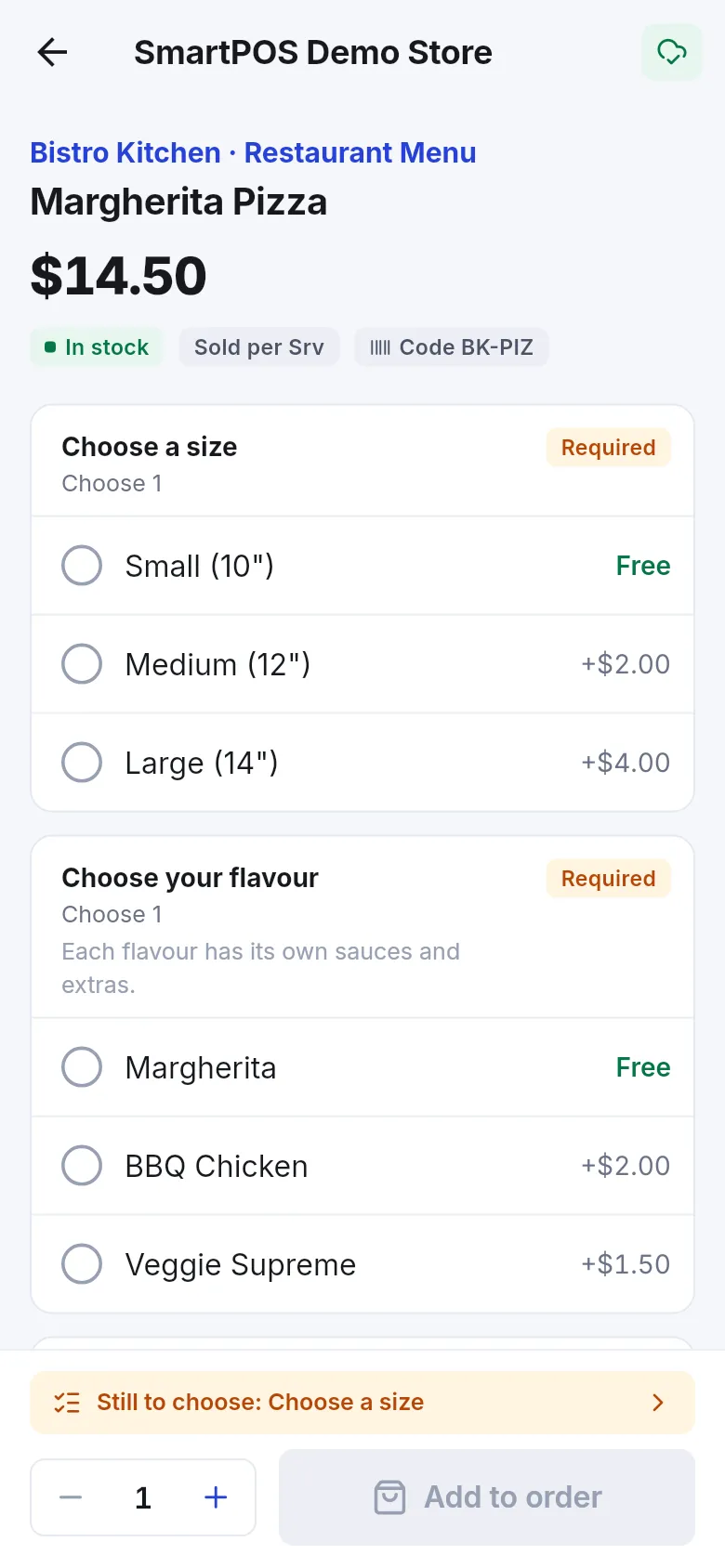
Section titled “What kinds of options will I see?”Stores set up options in groups. Each group has a title (for example Choose a size) and a small label:
| Label | What it means |
|---|---|
| Required | You must make a choice before you can add the product. |
| Optional | You can skip this group. |
| Choose 1 | Pick exactly one. |
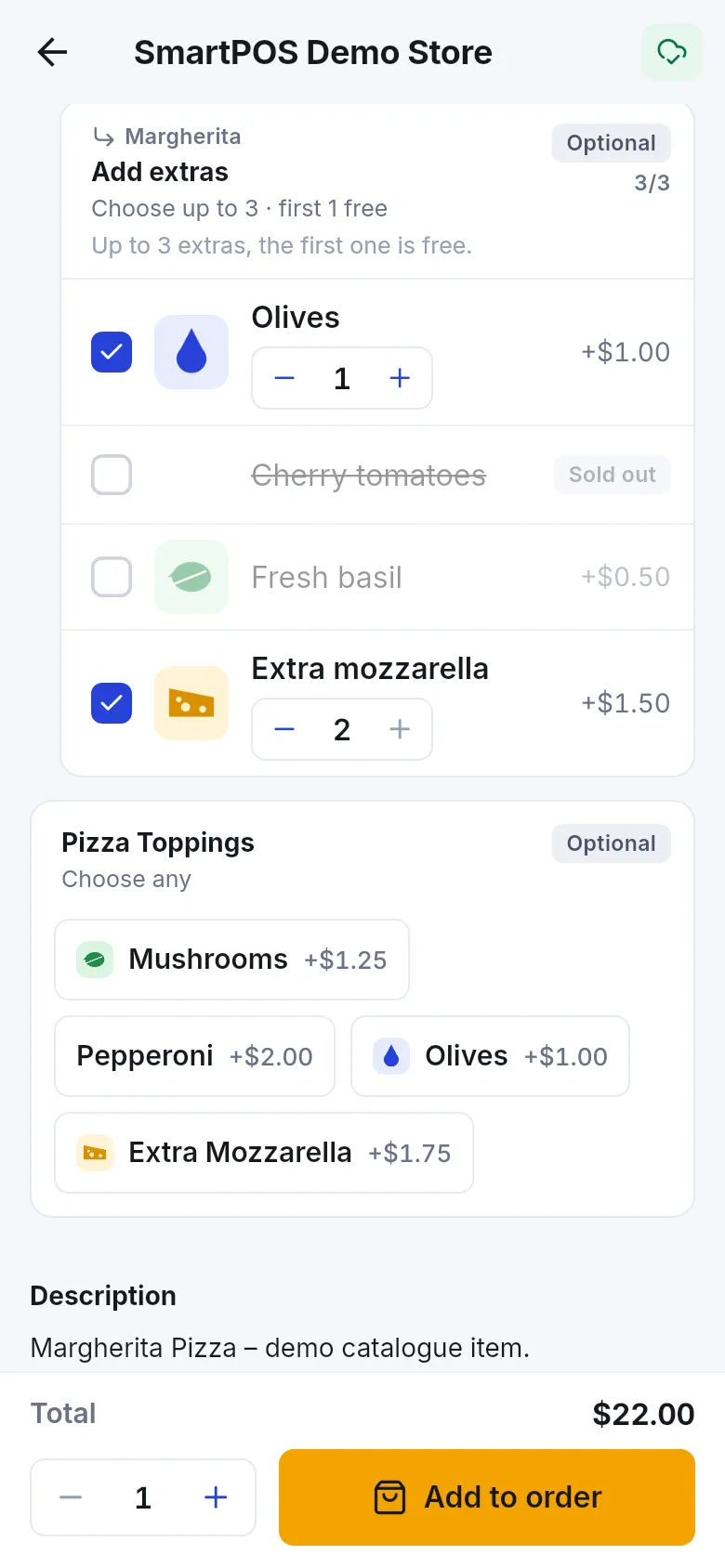
| Choose up to a number | Pick as many as you like, up to that number. |
| Choose a number / Choose at least a number / a range | Pick that many, at least that many, or between the two numbers. |
| Choose any | Pick as many as you like. |
| first a number free | The first extras you pick are free; the rest cost the price shown. |
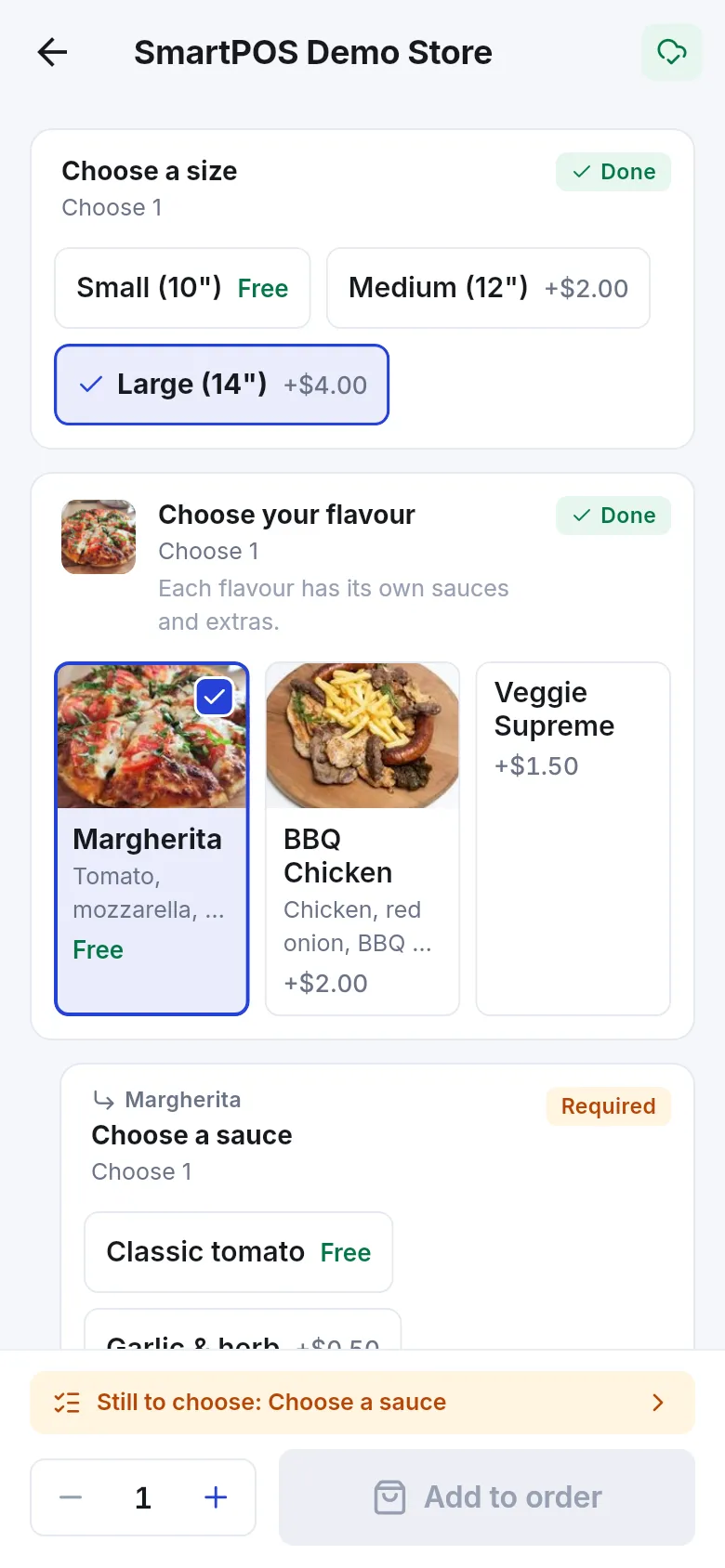
| Done (with a tick) | This group is complete. |
Each choice shows its extra cost (for example +$2.00) or Free. Some stores show options as photo tiles, as chips, or as a simple list. They all work the same way: tap to choose, tap again to remove.
How do I choose options on a product?
Section titled “How do I choose options on a product?”- Open the product from the Shop tab or search.
- Work through the groups from top to bottom. Tap an option to choose it. For extras, use the − and + buttons to take more than one of the same extra.
- Some choices open a follow-up group underneath, for example a sauce for the flavor you picked. These nested groups show the parent choice in small text above their title.
- Watch the Total at the bottom. It updates with every choice.
- If a yellow bar says Still to choose: followed by a group name, tap it to jump to that group.
- Set the quantity and tap Add to order (or Add to cart).
How do I fill in personal details (message, date, photo)?
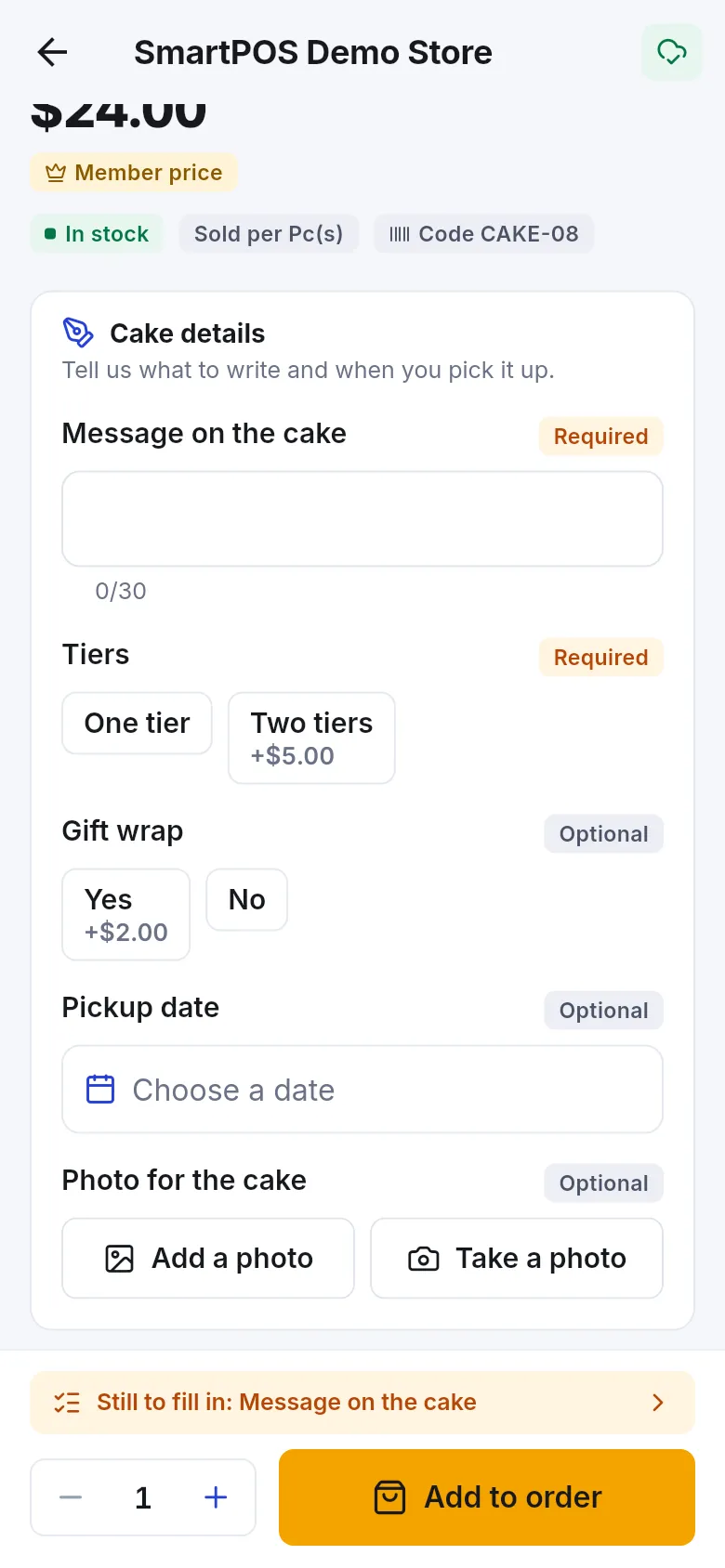
Section titled “How do I fill in personal details (message, date, photo)?”Some products need details from you, such as a cake message, a pickup date, a photo to print, or a signature. These appear in a details card on the product page.
- Type text into fields such as Message on the cake. A counter shows how many characters are left.
- Tap Choose a date or Choose a time to pick from a calendar.
- For photos, tap Add a photo (from your gallery) or Take a photo. Wait for Uploading… to finish.
- For a signature, tap Sign, sign with your finger in the box and tap Use this signature. Tap Clear to start again.
- Fields marked Required must be filled before you can add the product. If something is wrong, the app says Please check the details marked in red.
Some personal details add a charge, shown as Personalisation with the amount. Where a price depends on your answers, the app says The price is worked out from your answers.
How do I use the size guide?
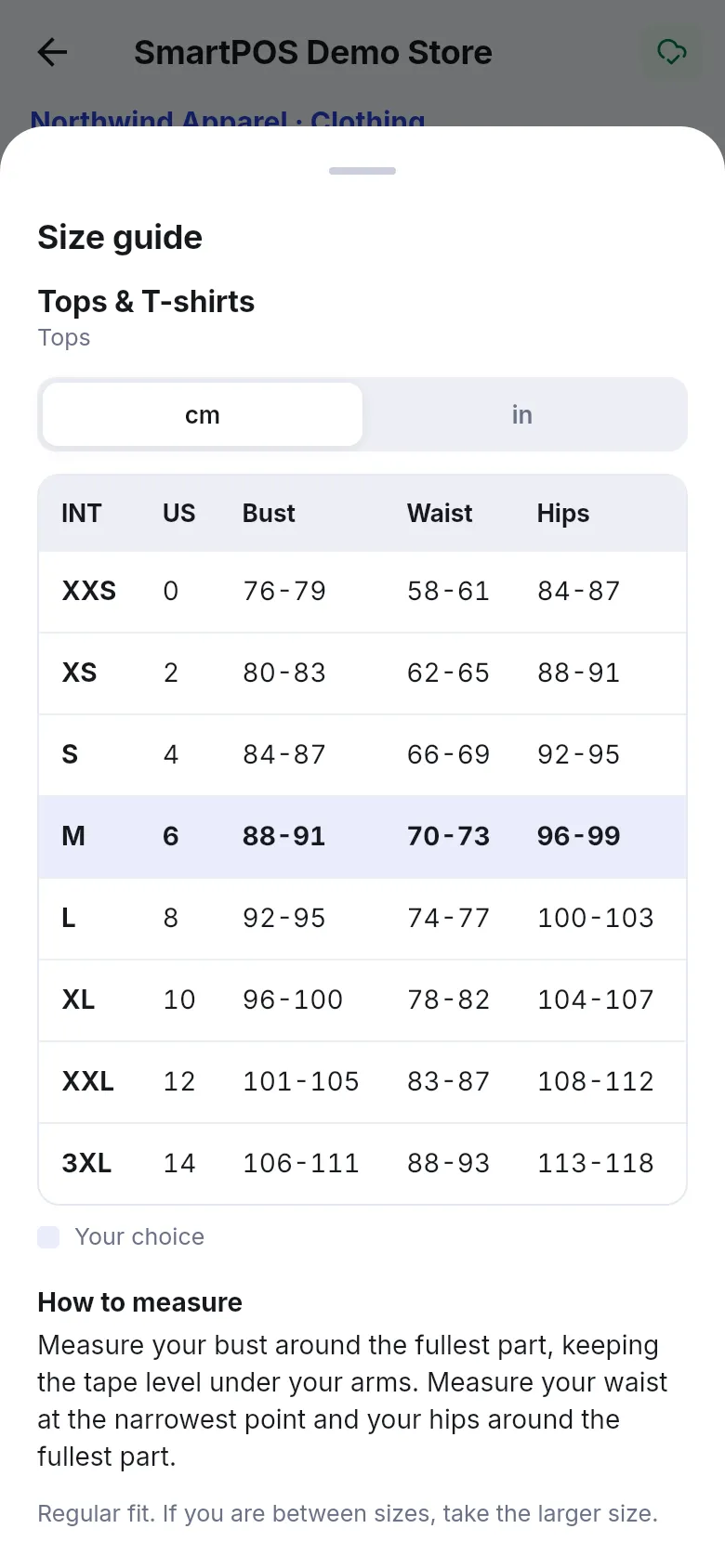
Section titled “How do I use the size guide?”On clothing and similar products, tap Size guide (“Find your size in the store’s chart”). Switch between units where the store offers them, read How to measure, and close the sheet. The size you selected is highlighted as Your choice.
Can I change options after adding the item?
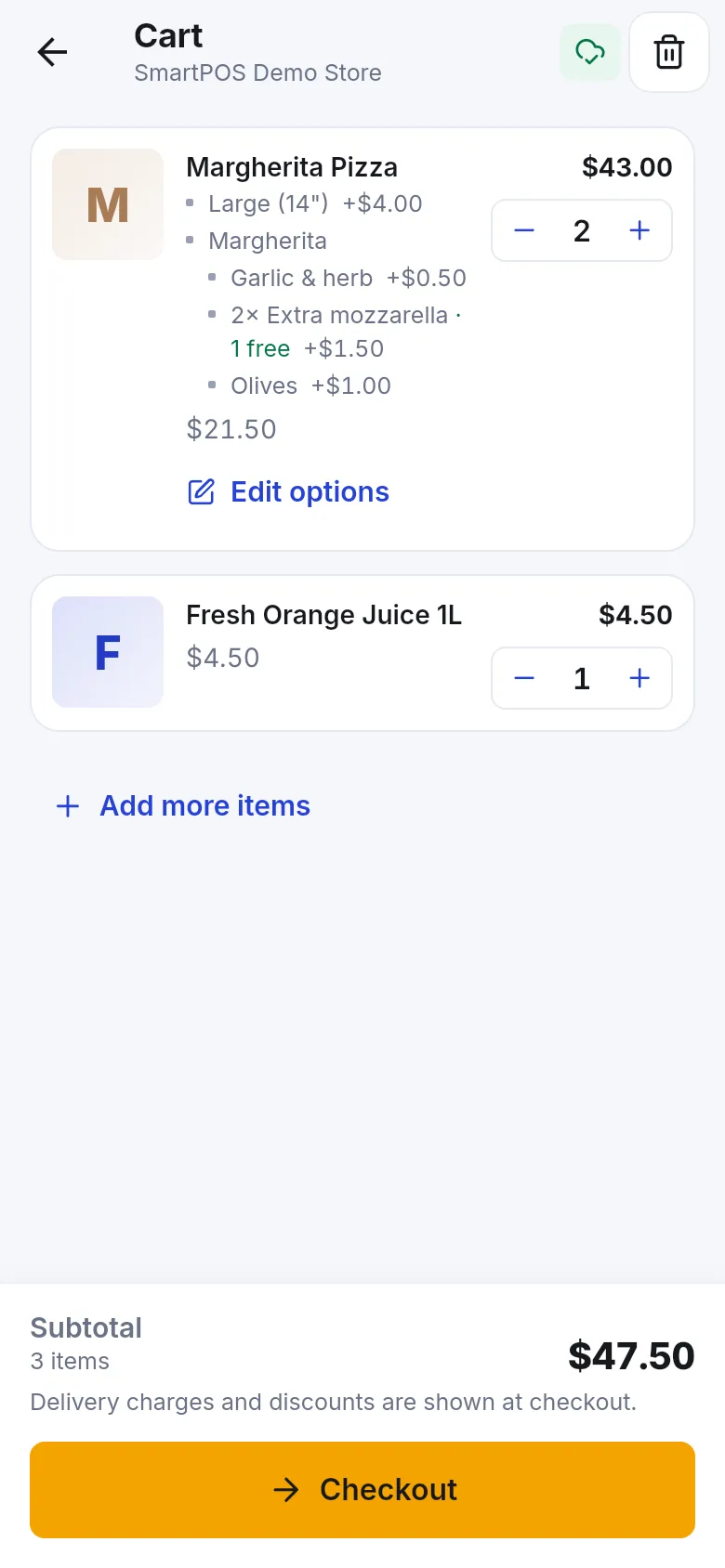
Section titled “Can I change options after adding the item?”Yes. Open your cart. Under an item with options you see the choices you made and a link:
- Edit options for sizes, flavors and extras.
- Edit details for personal details such as a message or photo.
Change what you need and tap Update item. The app confirms with Item updated.
If you see The details for a product have expired. Please fill them in again., tap the item and fill the details in again before you check out.
Why are options sometimes added at the till?
Section titled “Why are options sometimes added at the till?”Options are chosen in the app when you order from a store that takes app orders. When you add a product with options through Scan & Go, or the store does not take orders in the app, you see: The cashier adds the options (size, extras…) when you pay at the till. Tell the cashier your choices when you pay.
Frequently asked questions
Section titled “Frequently asked questions”Why is the Add to order button grey?
A required choice is still missing. Look for the yellow bar "Still to choose" above the button, tap it to jump to the missing group, and make your choice. The button turns active when every required group is done.
What does "first 1 free" mean on extras?
The store gives you a number of extras at no charge. In a group marked "first 1 free", the first extra you pick costs nothing and the next ones are charged at the price shown next to them.
Can I change options after I added the item?
Yes. Open your cart, tap Edit options (or Edit details for personal details) under the item, change your choices and tap Update item.
Why does the app say the cashier adds the options at the till?
Some stores only let you pick options when you order in the app. If you add the product through Scan & Go or the store does not take app orders, the cashier asks for your size or extras when you pay at the counter.
Can I upload a PDF or design file for a personalized product?
No. The app can add photos only. If the store needs another kind of file, bring it to the store.
Why can't I choose an option that is crossed out?
It is sold out at your location, or you already picked the maximum number allowed in that group ("Limit reached"). Unselect another choice first, or pick a different option.