

Scan & Go - scan items as you shop
Scan & Go lets you scan items with your phone as you put them in your basket. Each scan goes into your cart with its price, your total adds up as you go, and at the counter you show one code instead of having every item scanned again. This page shows you how to use Scan & Go in SmartPOS Shopper, step by step.
Before you start
Section titled “Before you start”- Join the store and check that it is selected at the top of the screen.
- Allow camera access the first time.
- Take a basket or trolley as usual. Scan & Go replaces the scanning at the till, not the paying.
How do I scan items into my cart?
Section titled “How do I scan items into my cart?”- Tap Scan in the bottom bar, then Scan & Go at the top (or tap the Scan & Go tile on Home, “Scan as you shop”).
- Tap Scan items and point the camera at the product barcode.
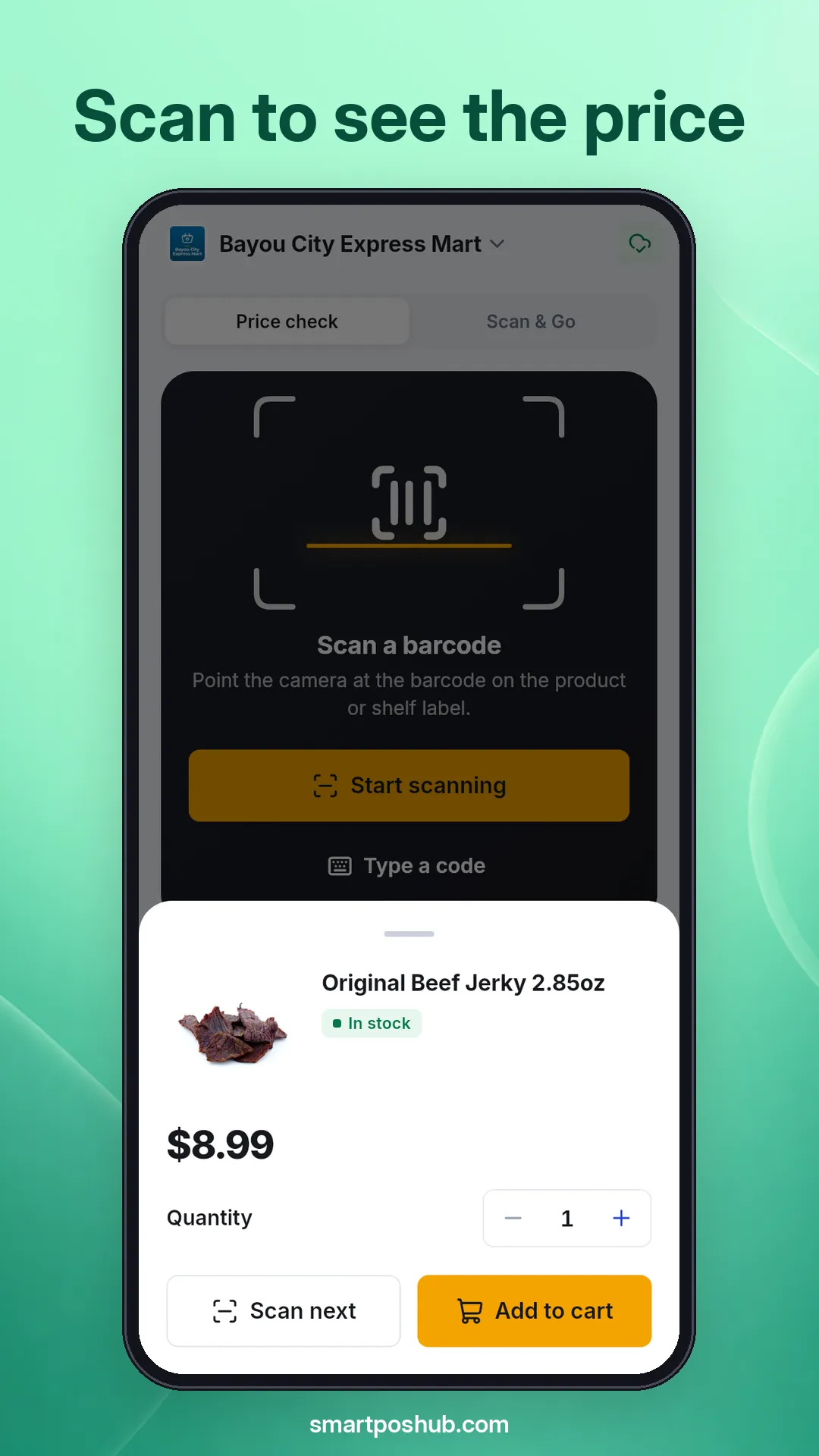
- A product sheet opens over the camera with the photo, price and stock.
- Set the Quantity with − and + if you take more than one.
- Tap Add to cart. The app confirms “added” and counts how many items you added in this session.
- Tap Scan next for the next product, and repeat.
- When you are done, open Cart to check your items and the Estimated total.
What if an item is weighed or out of stock?
Section titled “What if an item is weighed or out of stock?”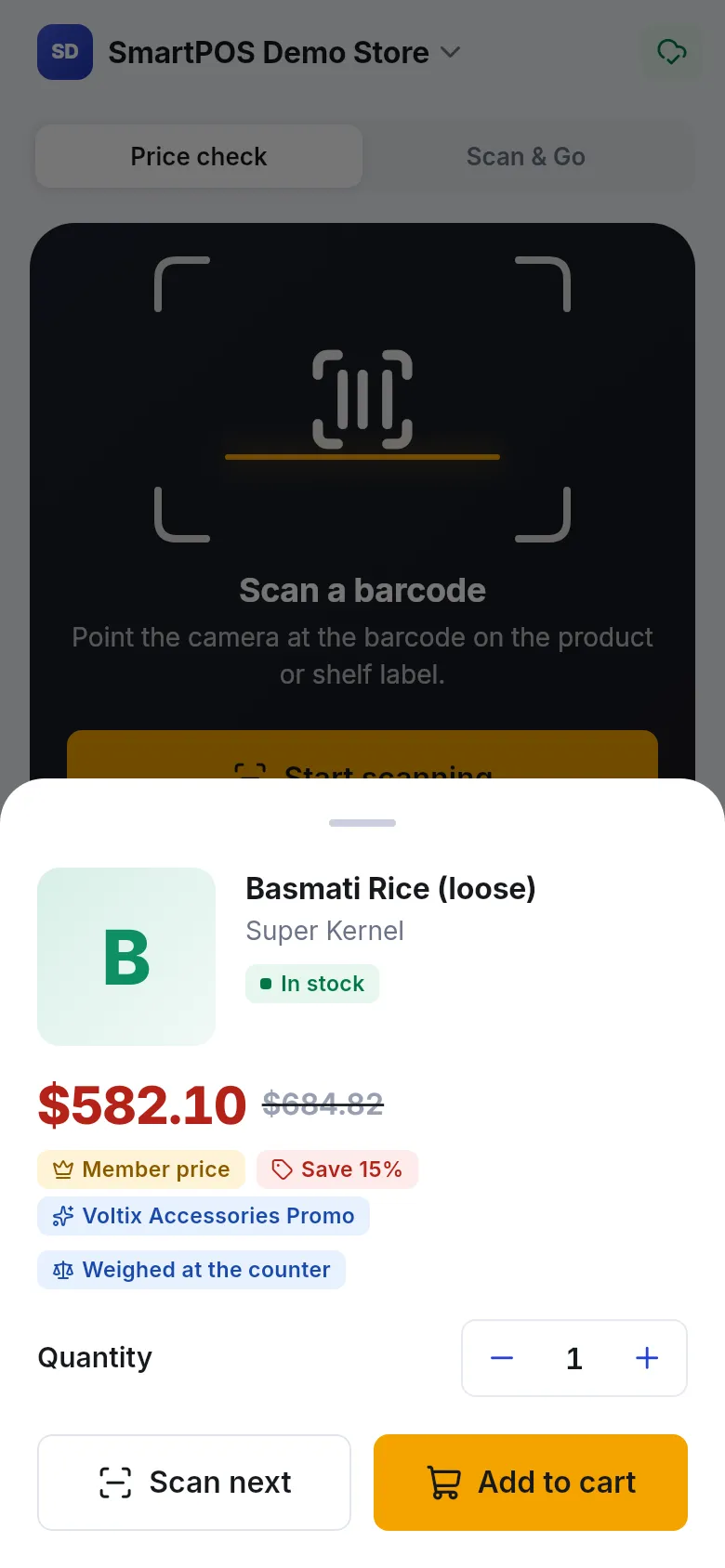
- Weighed items: products sold by weight show Weighed at the counter. If you scan a label printed by the store’s scale, the app reads the weight from it (Weight from label). Otherwise the cashier weighs the item when you pay.
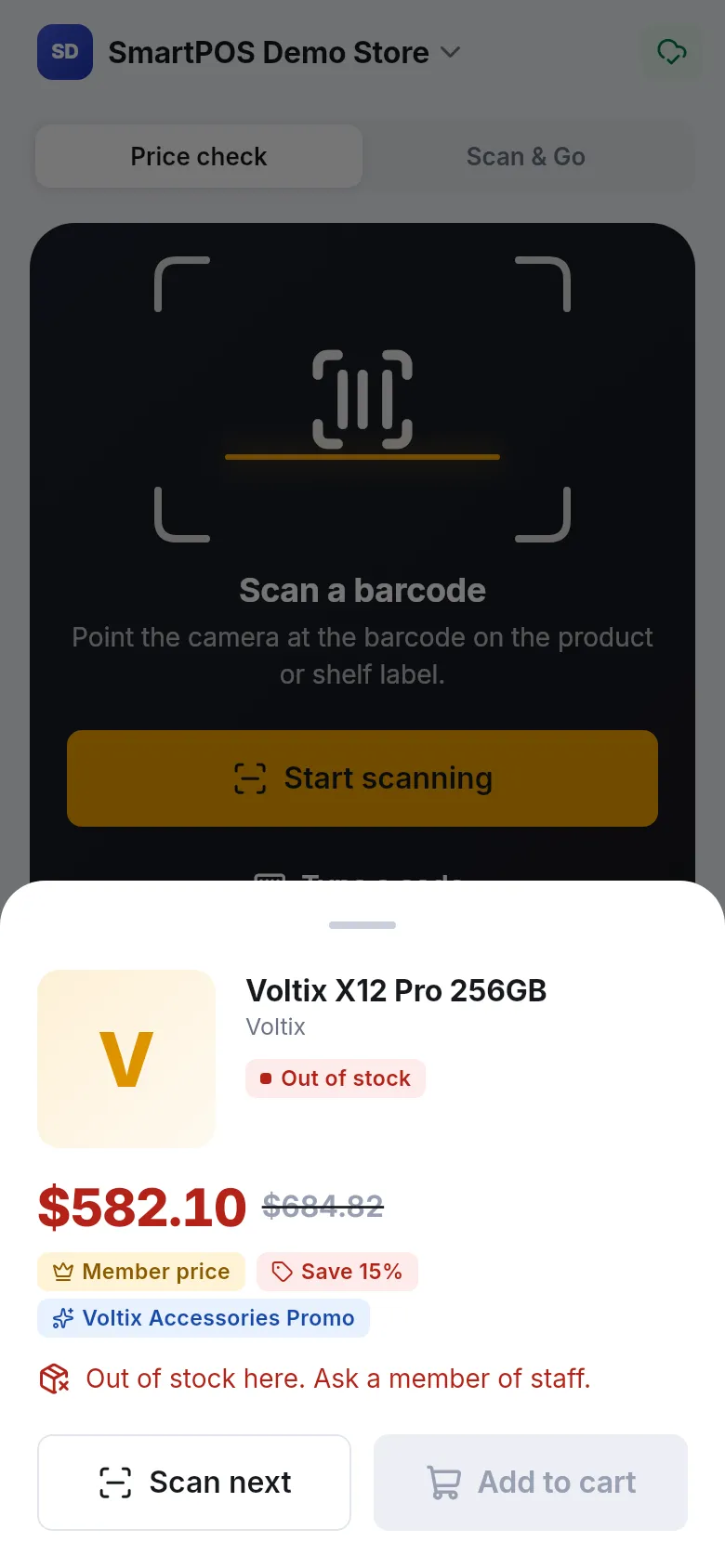
- Out of stock: you see Out of stock here. Ask a member of staff. and you can’t add it.
- Not found: Not found in this store, followed by the code. Ask a member of staff.
- ID check: age-restricted items show that the cashier checks your ID. Have your ID ready.
Check your cart as you shop
Section titled “Check your cart as you shop”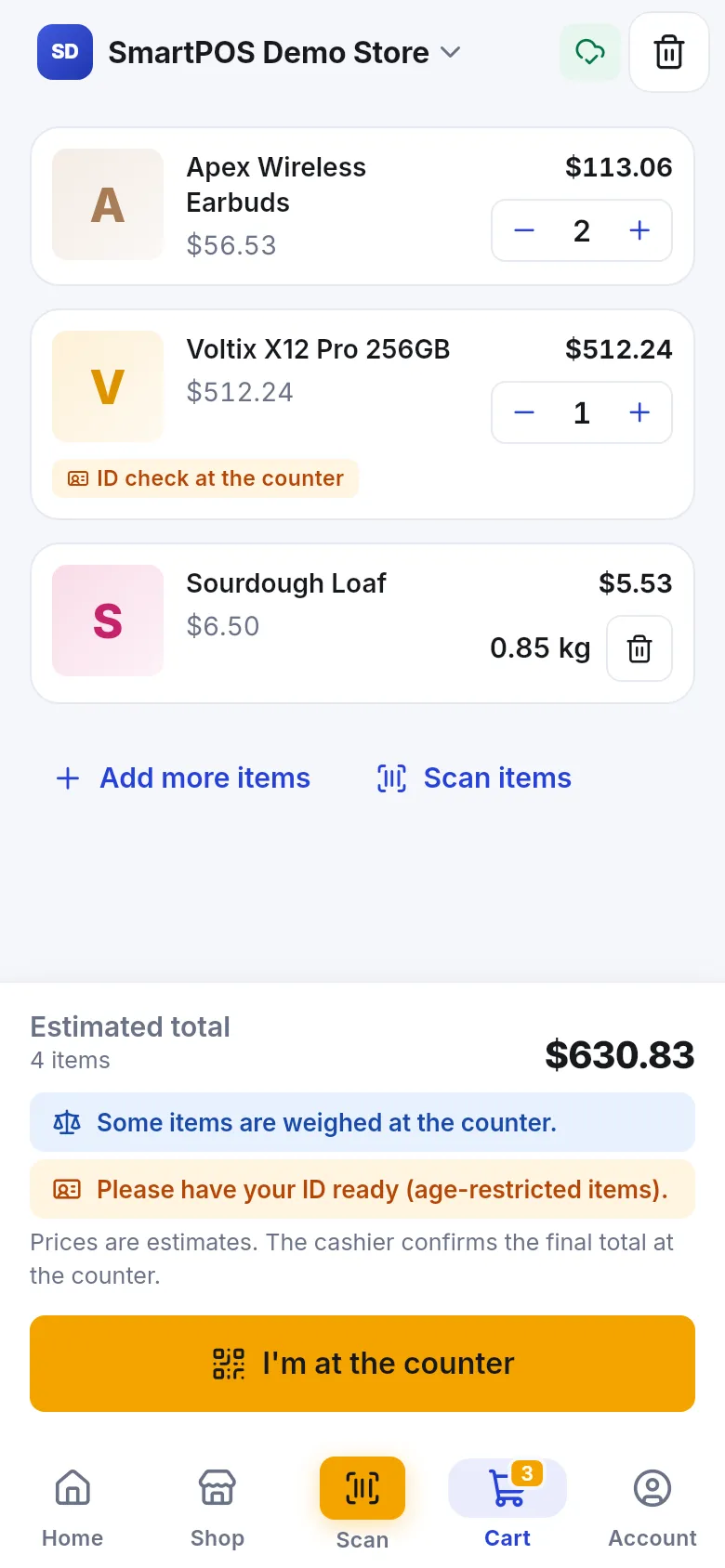
Open Cart at any time to change quantities, remove items (with Undo) or see the Estimated total. Items you added from the Shop tab are in the same cart. See your cart.
Ready to pay?
Section titled “Ready to pay?”Go to the counter, open Cart and tap I’m at the counter. The app shows a QR code and a short cart code for the cashier. Follow check out with your cart code.
Tips and mistakes to avoid
Section titled “Tips and mistakes to avoid”- Scan before you bag. Scan each item as it goes into your basket, so nothing is forgotten.
- Scanned twice? Lower the quantity in the cart. The app merges identical items into one line.
- No signal in the store? Keep scanning. The cart says Saved on this phone. It syncs as soon as you’re online. You need a connection again for the counter code.
- Options like size or extras are added by the cashier at the till for scanned items.
- “Scan & Go can’t be used on this phone in this store.” The store has blocked Scan & Go for this phone. Pay at a normal till and ask the staff.
Frequently asked questions
Section titled “Frequently asked questions”Which stores have Scan & Go?
Only stores that switched it on. On a store's page, look for Scan & Go under "In this store", or filter Find stores by Scan & Go. In other stores the app says "Scan & Go isn't available in this store."
Do I still pay at the counter?
Yes. Scan & Go saves you from queuing to have every item scanned. At the counter you show one code, the cashier loads your whole cart, and you pay the normal way.
How do weighed items work?
If the label comes from the store's scale, the app reads the weight from it. Loose items without a scale label are weighed by the cashier at the counter, and the app reminds you with "Some items are weighed at the counter."
I scanned something twice. How do I fix it?
Open the cart and lower the quantity with the minus button, or remove the line. You can undo a removal straight away.
Does Scan & Go work without internet?
Scanning items you already know keeps working, and your cart is saved on your phone. It syncs as soon as you are online. You need internet to get the code you show at the counter.
Why can't I add an item I scanned?
It is out of stock at this store ("Out of stock here. Ask a member of staff.") or not sold in the app here. Ask a member of staff.
Is the total in my cart final?
No, it is an estimated total. The cashier confirms the final total at the counter, including weighed items, offers and taxes.