

Place an order for pickup, delivery or dine-in
With SmartPOS Shopper you can place an order with a store straight from your phone and collect it, have it delivered, or eat in. This page walks you through checkout: choosing pickup, delivery or dine-in, entering your address or table, adding a note or coupon, and placing the order.
Before you start
Section titled “Before you start”- You are signed in and a member of the store (join a store).
- If the store asks, you chose a location. Each branch has its own menu and prices.
- Your products are in the cart, with all required options chosen.
- You are online. Without internet the app says You’re offline. Connect to the internet to place your order.
How do I place an order?
Section titled “How do I place an order?”- Open Cart and tap Checkout.
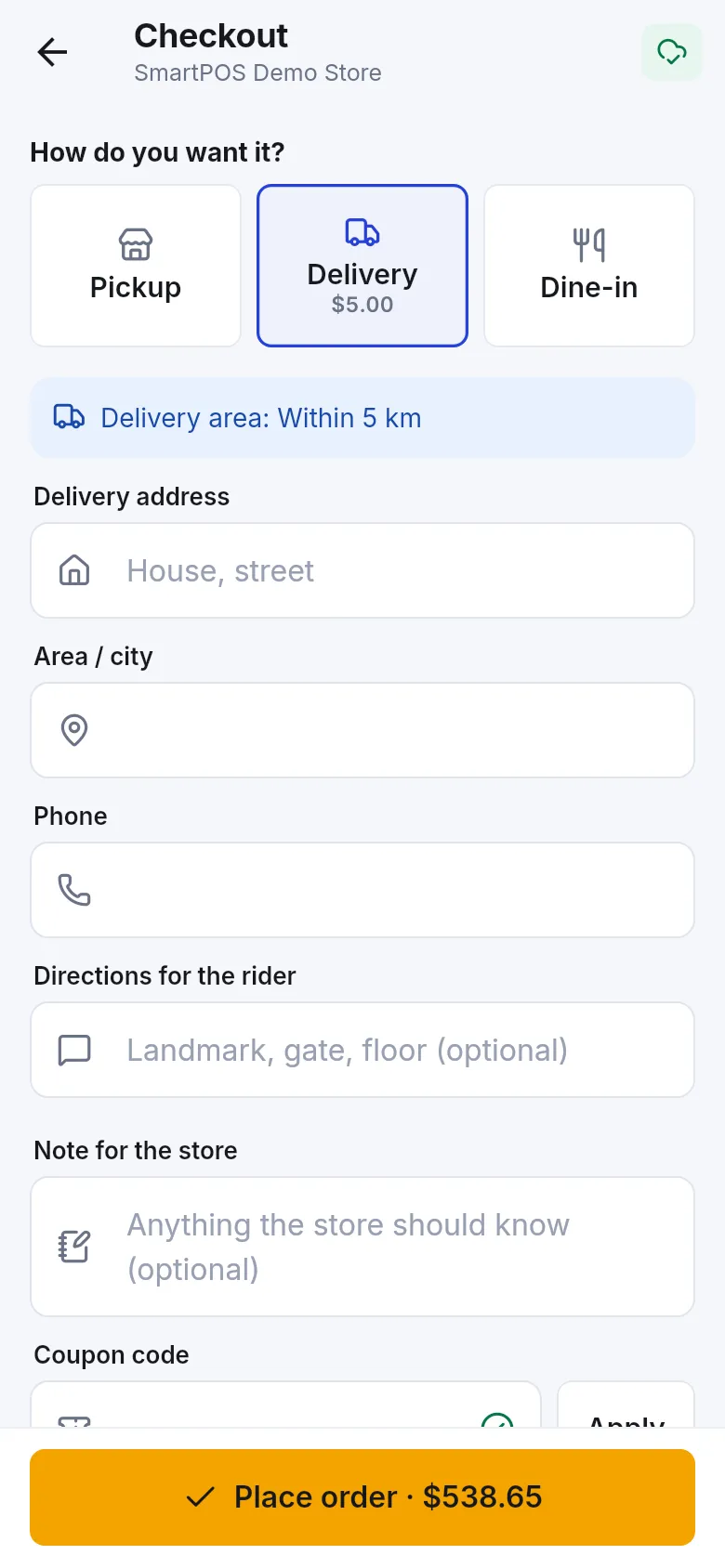
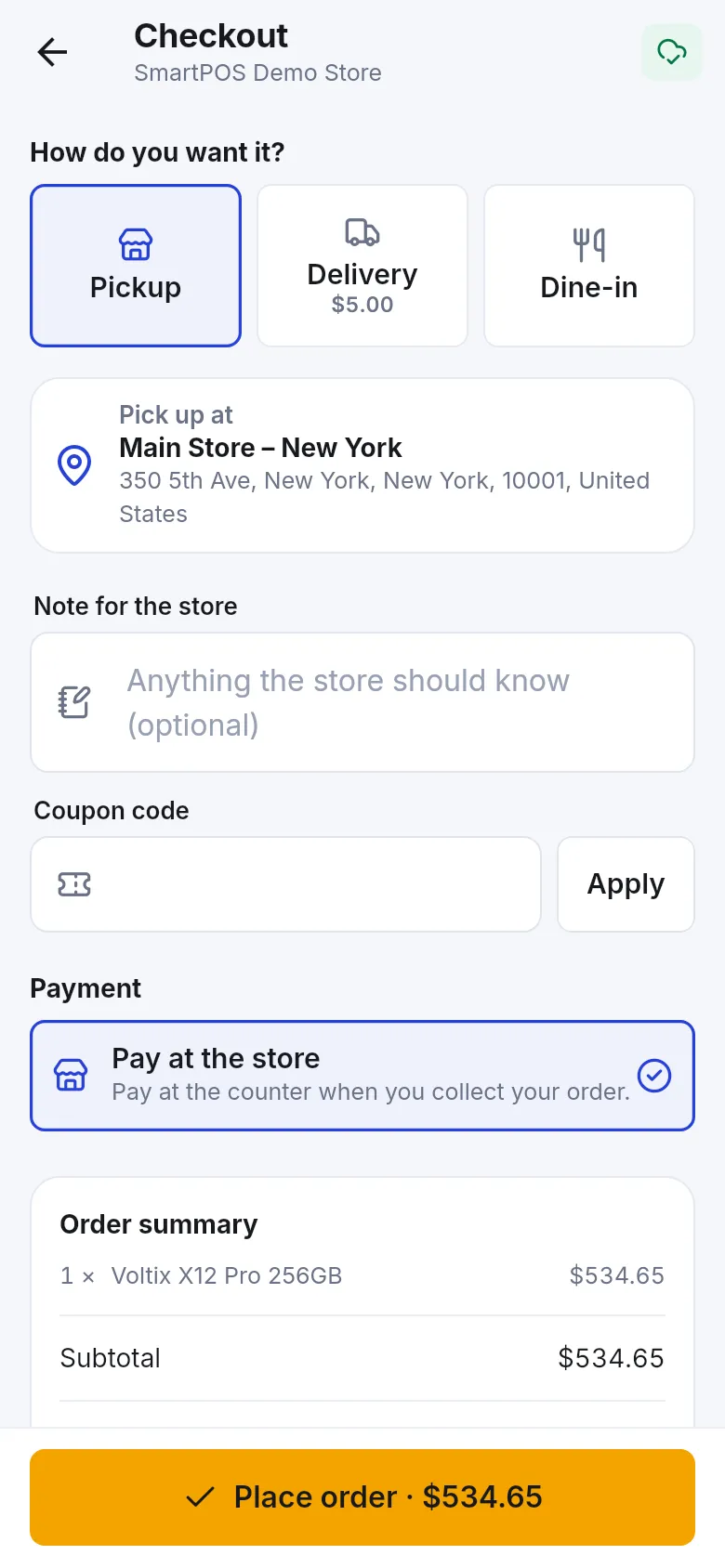
- Under How do you want it?, tap Pickup, Delivery or Dine-in. Delivery shows its charge under the button (or Free).
- Fill in the details for your choice (see the tabs below).
- Optional: write a Note for the store (for example “no onions” or “call when you arrive”).
- Optional: type a Coupon code and tap Apply. The discount appears in the summary as Coupon followed by the code.
- Optional: use your store credit or a gift card under Store credit & gift cards.
- Under Payment, choose how to pay. See payment options.
- Check the Order summary: items, Subtotal, Tax, Delivery, Discount and Total.
- Tap Place order (the button shows the total, for example Place order · $534.65).
The checkout shows Pick up at with the branch name and address. If the store lets you choose, tap Change to pick another branch. Most stores offer Pay at the store for pickup: you pay at the counter when you collect your order.
Enter your Delivery address (house, street; required), Area / city and Phone. Add Directions for the rider if helpful (landmark, gate, floor). The app shows the store’s Delivery area, the delivery charge, and, if the store offers it, how much more to add for free delivery (Add an amount more for free delivery.).
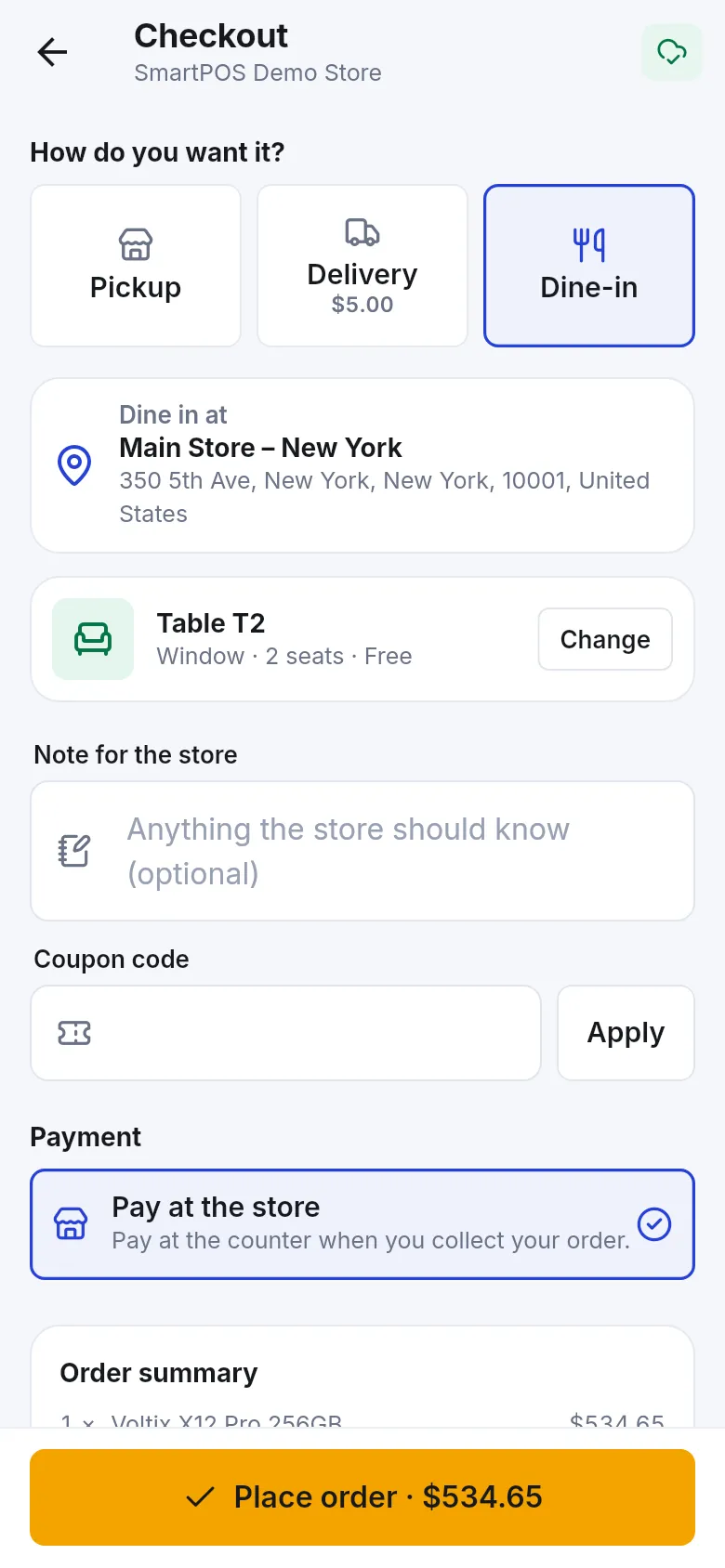
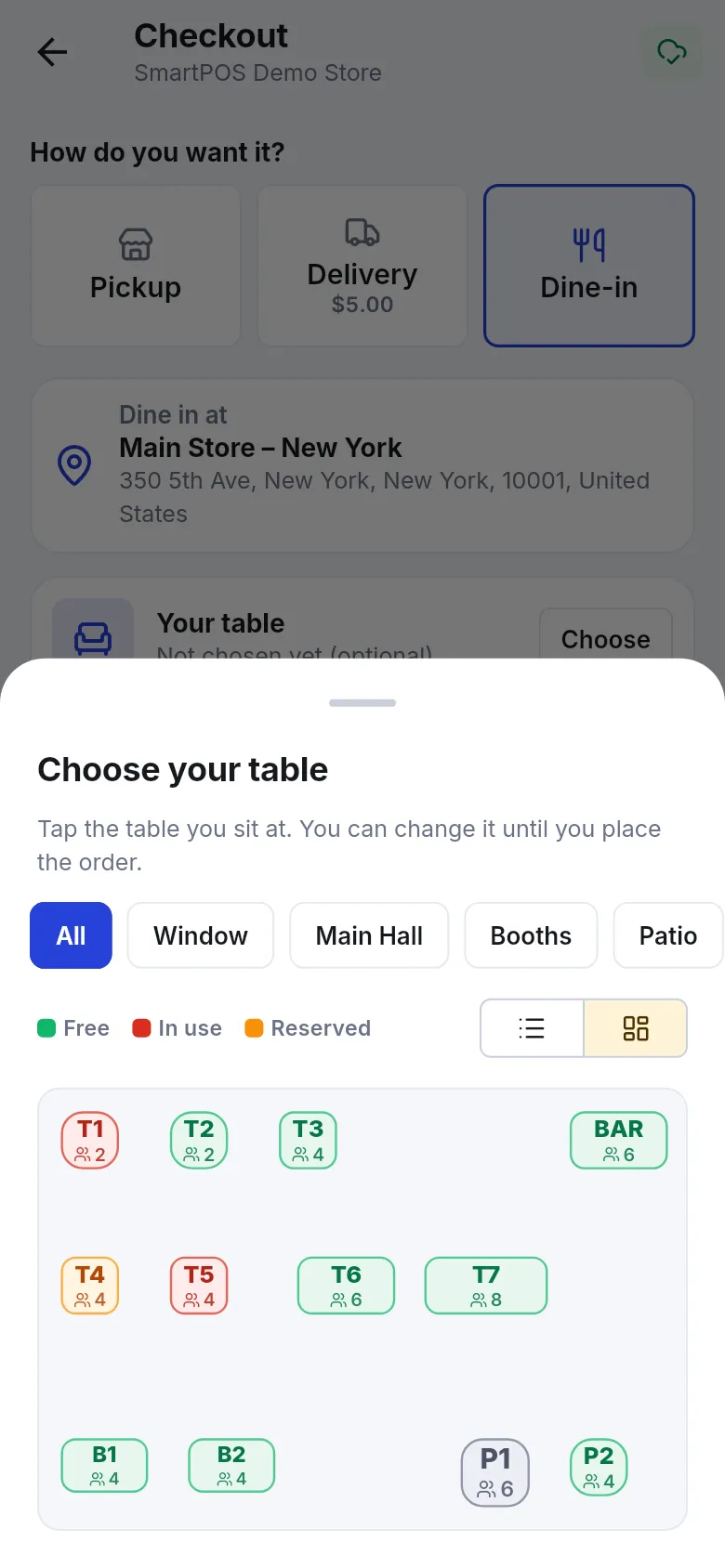
The checkout shows Dine in at with the branch. Under Your table, tap Choose to pick the table you sit at, from a list or a floor plan. Tables are marked Free, In use, Reserved or Being cleaned. Some stores ask you to type the Table number or name instead. Choosing a table is optional; staff seat you if you skip it.
What happens after I place the order?
Section titled “What happens after I place the order?”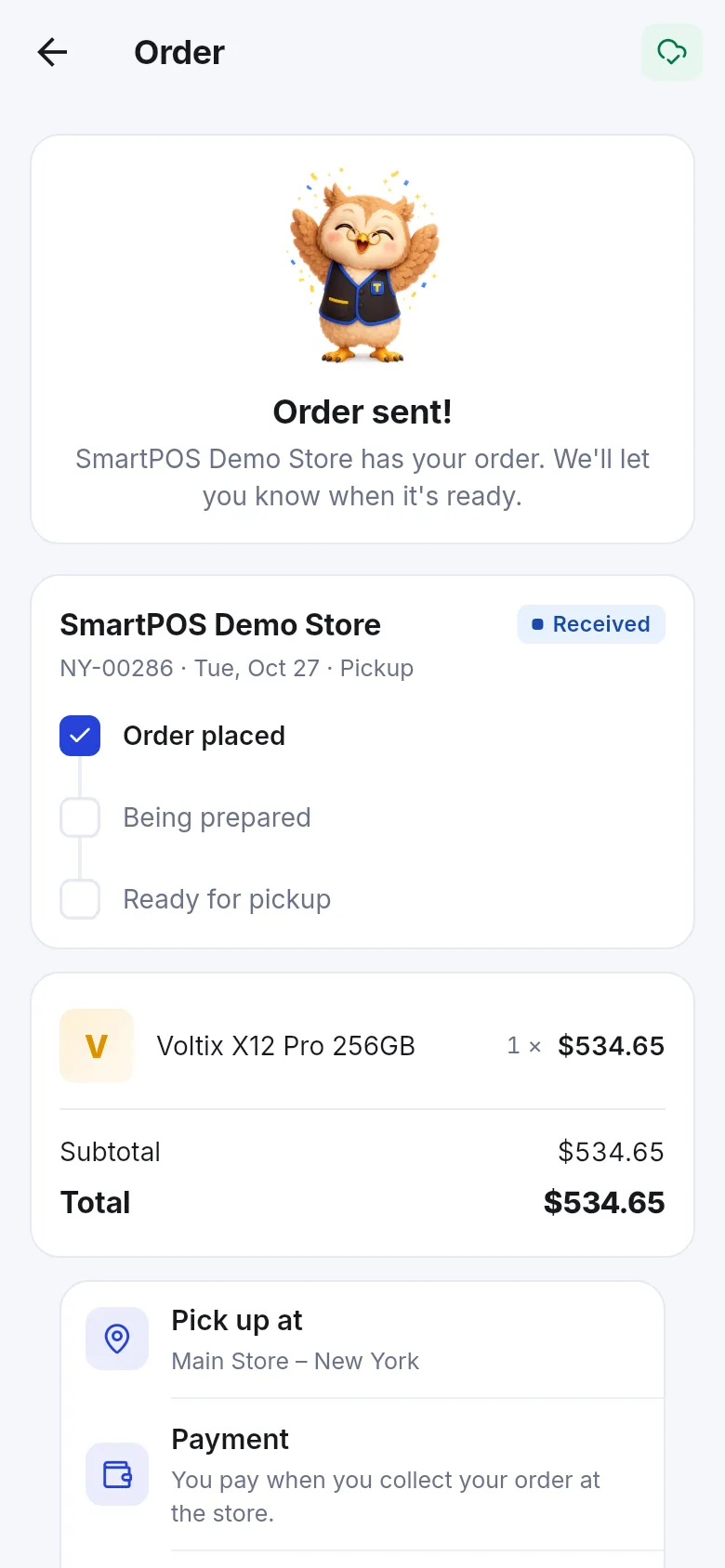
- You see Order sent! and “the store has your order. We’ll let you know when it’s ready.”
- The order appears in My orders with its number and status, starting at Received.
- If you chose online payment or a bank transfer, finish the payment first. See pay for your order.
- You get a notification at each new step (being prepared, ready, on the way, completed), depending on your notification settings.
Follow the order in track your orders.
Messages you might see at checkout
Section titled “Messages you might see at checkout”| Message | What to do |
|---|---|
| No payment option is available for this order. | The store has no payment option for this way of ordering. Try another option (for example Pickup) or contact the store. |
| Prices or charges changed. Please check the new total. | Check the new total, then tap Place order again. |
| The store does not deliver to this address. | Use another address or switch to Pickup. |
| The minimum order for delivery is … | Add more items or choose Pickup. |
| Too many orders in a short time. | Wait a while or call the store. |
Tips and mistakes to avoid
Section titled “Tips and mistakes to avoid”- Don’t worry about tapping twice. Each order is sent only once, even on a slow connection.
- Check the branch before you place a pickup order, especially in stores with several locations.
- Write rider directions for apartments and gated streets. It saves a phone call.
- Questions about your order? Open it and tap Ask about this order to message the store.
Frequently asked questions
Section titled “Frequently asked questions”Why don't I see a Checkout button?
The store does not take orders in the app, or not right now. You can still use Scan & Go and pay at the counter if the store offers it. The app says "This store doesn't take orders in the app right now." when ordering is switched off.
Why is Delivery or Dine-in missing?
Each store chooses which of Pickup, Delivery and Dine-in it offers. You only see the options your store has turned on.
Why does the app say the store doesn't deliver to my address?
Your address is outside the store's delivery area. The delivery area is shown on the checkout screen. Choose Pickup instead, or contact the store.
Is there a minimum order for delivery?
Some stores set one. If your order is below it, the app tells you the minimum amount. Some stores also offer free delivery above a certain amount and show how much more you need to add.
What if I tap Place order twice?
Your order is only placed once. The app protects each order, so a second tap or a weak connection does not create a duplicate. Check My orders if you are unsure.
Why did the total change when I placed the order?
A price, tax or delivery charge changed while you were on the checkout screen. The app shows "Prices or charges changed. Please check the new total." Check the new total and place the order again.
Can I order while offline?
No. You need an internet connection to place an order. You can keep filling your cart offline and check out once you are back online.
Where do I see my order after placing it?
In My orders, from the store's Home screen or from your account. The order page shows the status from Received to Ready or On the way.