

Choose notifications for each store
In SmartPOS Shopper you choose how stores reach you: for each kind of notice you pick phone alerts, e-mail or SMS. Set your choices once for all stores, then give a single store its own settings or mute it completely. This page explains the notification settings, the defaults and what muting does.
Open notification settings
Section titled “Open notification settings”- Open the Account tab.
- Tap Notification settings (Choose how stores reach you). You can also tap the gear in the Notifications inbox.
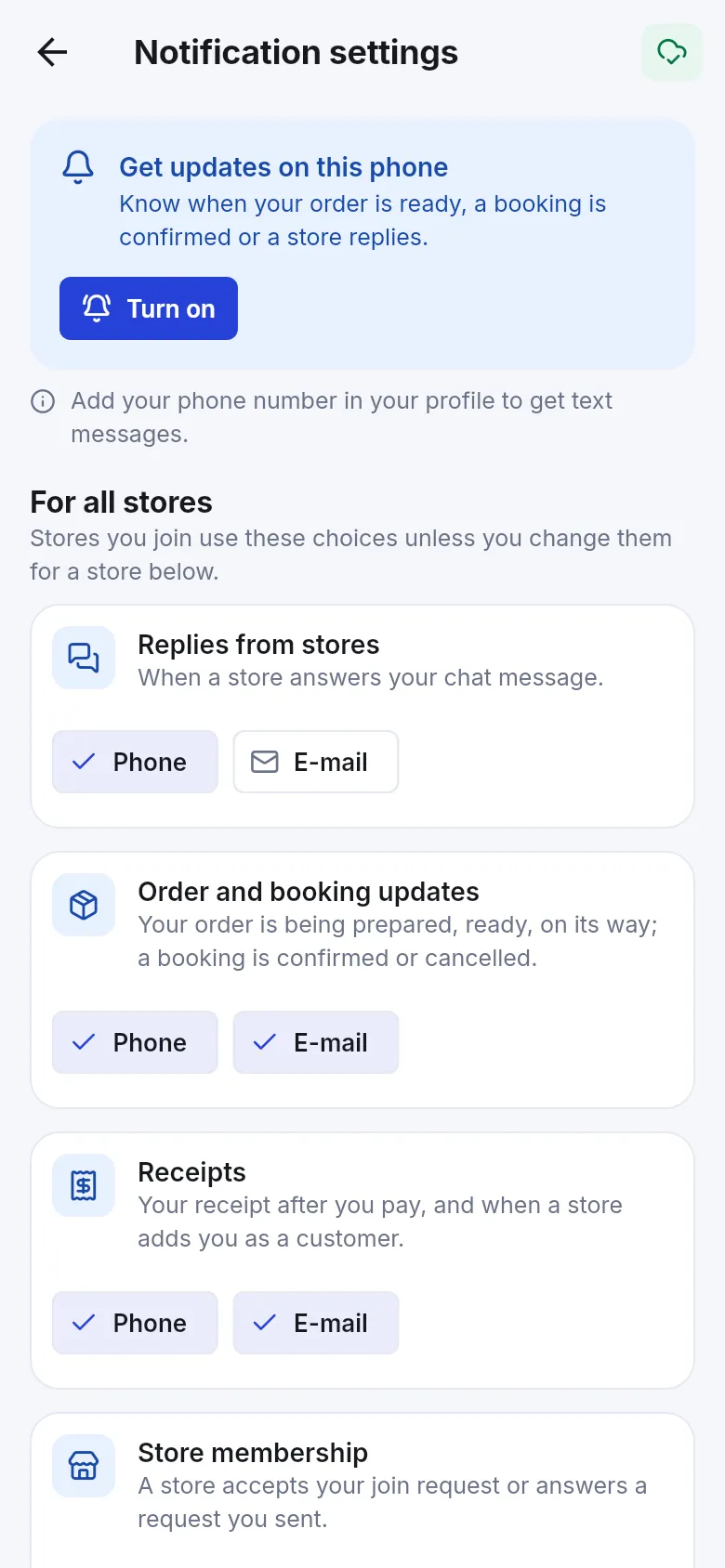
At the top is the phone card (turn alerts on or open phone settings — see turn on notifications). Below are For all stores and Stores.
Set your choices for all stores
Section titled “Set your choices for all stores”Under For all stores there are four types, each with buttons for Phone, E-mail and SMS. A tick means on.
| Type | What it covers | Default |
|---|---|---|
| Replies from stores | A store answers your chat message. | Phone |
| Order and booking updates | Your order is being prepared, ready, on its way; a booking is confirmed or cancelled. | Phone + E-mail |
| Receipts | Your receipt after you pay, and when a store adds you as a customer. | Phone + E-mail |
| Store membership | A store accepts your join request or answers a request you sent. | Phone |
Tap a button to switch it on or off. “Stores you join use these choices unless you change them for a store below.”
Choose for one store or mute it
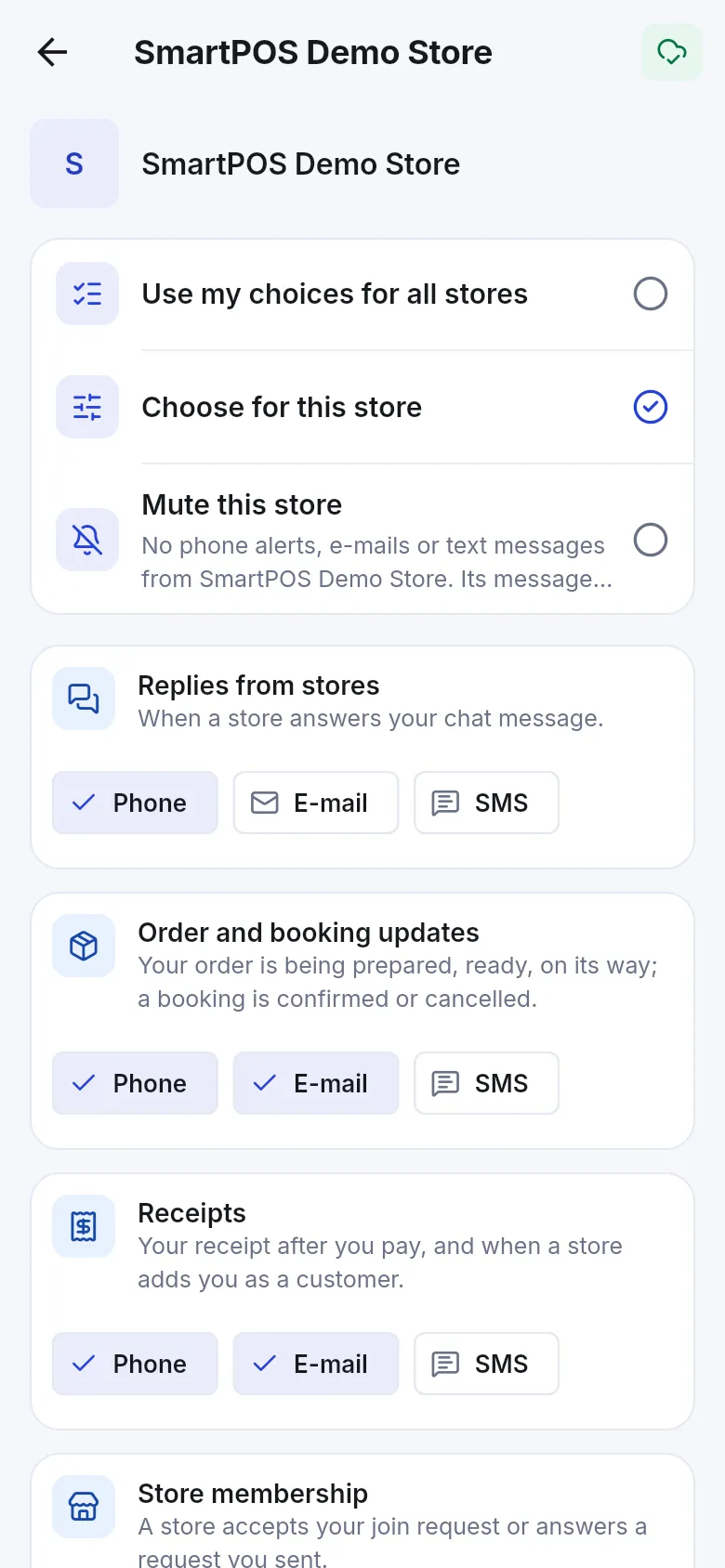
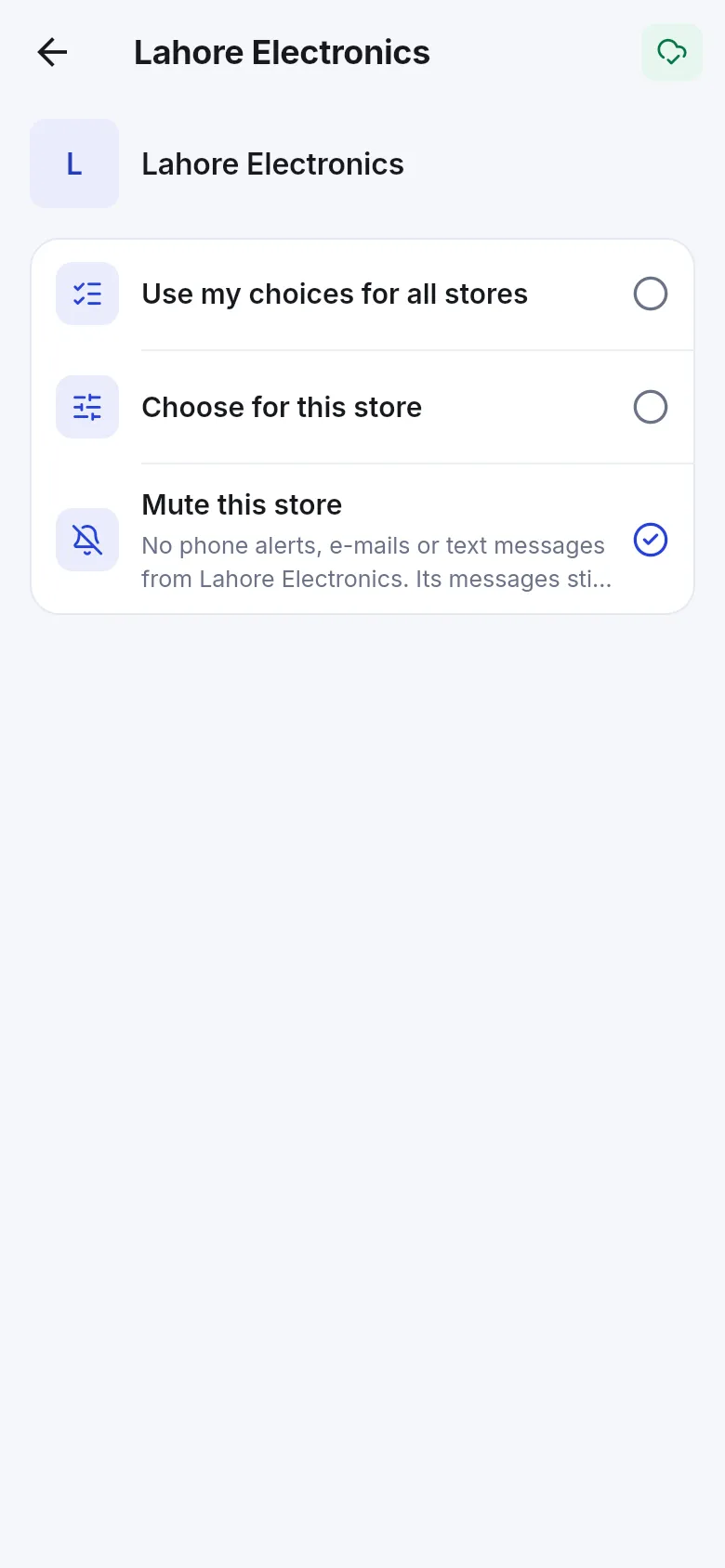
Section titled “Choose for one store or mute it”- Under Stores, tap the store. Each store shows its mode: Uses your choices, Own choices or Muted.
- Pick one:
- Use my choices for all stores — the store follows your defaults.
- Choose for this store — the four types appear for this store; set Phone, E-mail and SMS as you like.
- Mute this store — “No phone alerts, e-mails or text messages from store. Its messages still appear in the app.”
- Go back. Your choice is saved.
Good to know
Section titled “Good to know”- If you switch off every channel for a type, you see “Nothing is sent for this. You can still see it in the app.”
- Everything also stays in your in-app Notifications inbox.
- “Sign-in codes are always sent: they keep your account safe.”
- News and offers by e-mail is a separate switch (per store on the store page, and for all stores in Account). It is not part of these settings.
Frequently asked questions
Section titled “Frequently asked questions”What are the default notification settings?
Phone alerts are on for every type. E-mail is on for receipts and for order and booking updates. Text messages (SMS) are off. You can change any of them under For all stores in Notification settings.
Can one store use different settings from the others?
Yes. In Notification settings, tap the store under Stores and pick Choose for this store. That store then uses its own choices, and every other store keeps using your choices for all stores.
What does muting a store do?
Mute this store stops all phone alerts, e-mails and text messages from that store. Its notices still appear in the app's Notifications inbox, so you can check them when you want.
Why can't I pick SMS or E-mail for a store?
The channel only shows when it can work. SMS needs a phone number in your profile and a store that sends text messages; e-mail needs a store that sends e-mail. Add your phone number in your profile to get text messages.
What if I switch every channel off for a type?
The app tells you Nothing is sent for this. You can still see it in the app. The notices keep arriving in your in-app inbox; only the phone alert, e-mail and SMS stop.
Does muting a store stop store news and offers e-mails?
News and offers by e-mail is a separate switch on the store page and in Account. Turn it off there. Notification settings cover replies, order and booking updates, receipts and membership notices.