

Track your orders and parcels
After you place an order in the SmartPOS Shopper app, you can track your order on its own page: see whether the store has received it, is preparing it, or has it ready for pickup or on the way, and follow a courier parcel with its tracking number. This page shows where to find your orders and what every status means.
Where do I find my orders?
Section titled “Where do I find my orders?”Every store keeps its own list of your orders.
- Open the store on the Home tab. If you have several stores, tap the store name at the top to switch.
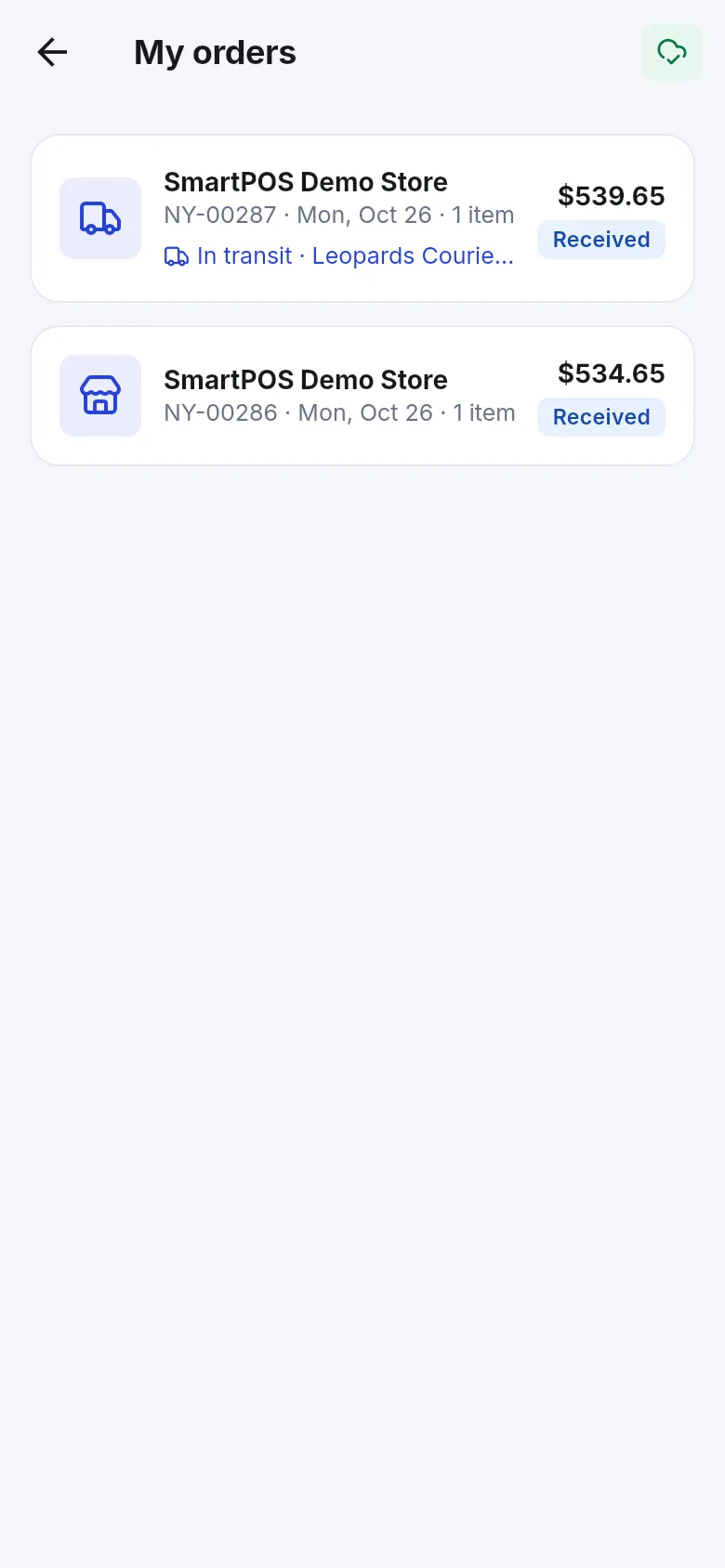
- Tap the My orders tile (Status of your orders).
- The list shows each order with the store, the order number, the date, the number of items, the total and a status badge.
- Tap an order to open the Order page.
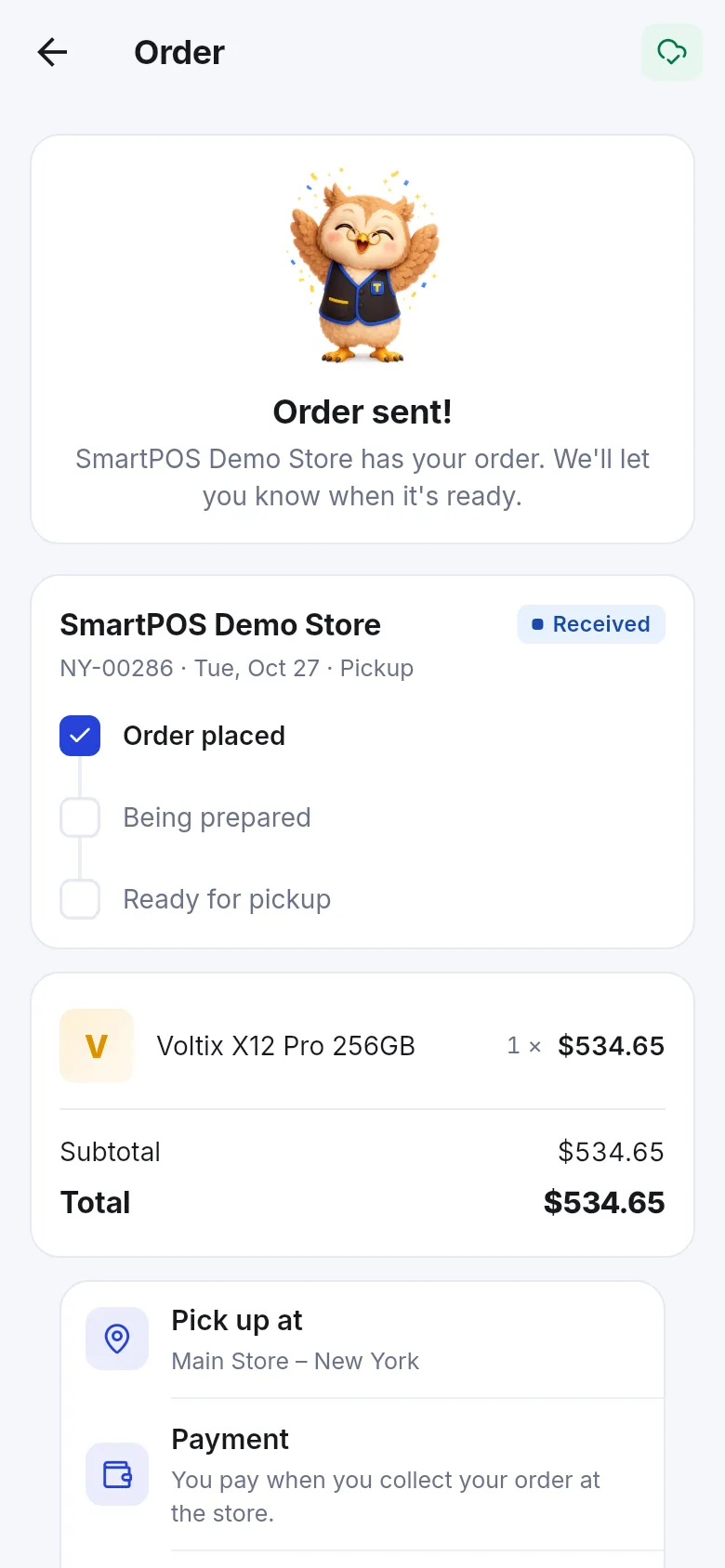
Right after you place an order, the app opens the order page for you with Order sent! and the words “Store has your order. We’ll let you know when it’s ready.”
What do the order statuses mean?
Section titled “What do the order statuses mean?”| Status in the app | What it means | What you do |
|---|---|---|
| Waiting for payment | The store has the order, but the payment isn’t finished yet. | Tap Pay now, or upload your transfer receipt. |
| Received | The store has your order. | Nothing — wait for the next step. |
| Preparing | The store is getting it ready. | Nothing. |
| Ready for pickup | You can collect it at the location shown under Pick up at. | Go to the store. |
| Being served | Dine-in: your food is on its way to your table. | Enjoy. |
| On the way | Delivery: the rider or courier has it. | Keep your phone close. |
| Completed | Done. Your receipt is saved. | Check Receipts if you need it. |
| Refunded | The store refunded the order. | See the receipt for how it was paid back. |
| Cancelled | The store cancelled the order. | Message the store if you aren’t sure why. |
The progress steps on the order page (for example Order placed, Being prepared, Ready for pickup) tick off as the store moves your order forward. The order page also shows the items, subtotal, delivery charge, discount and total, where you pick it up or where it is delivered, the payment method and your note for the store.
How do I track a delivery parcel?
Section titled “How do I track a delivery parcel?”When a store ships an order with a courier or its own delivery, a Parcel card appears on the order page.
- Open the order from My orders. Orders with a parcel show a small line such as In transit in the list.
- On the Parcel card you see the courier name (or Store delivery) and the parcel status.
- Tap Copy next to the Tracking number to copy it.
- Tap Track parcel to open the courier’s tracking page.
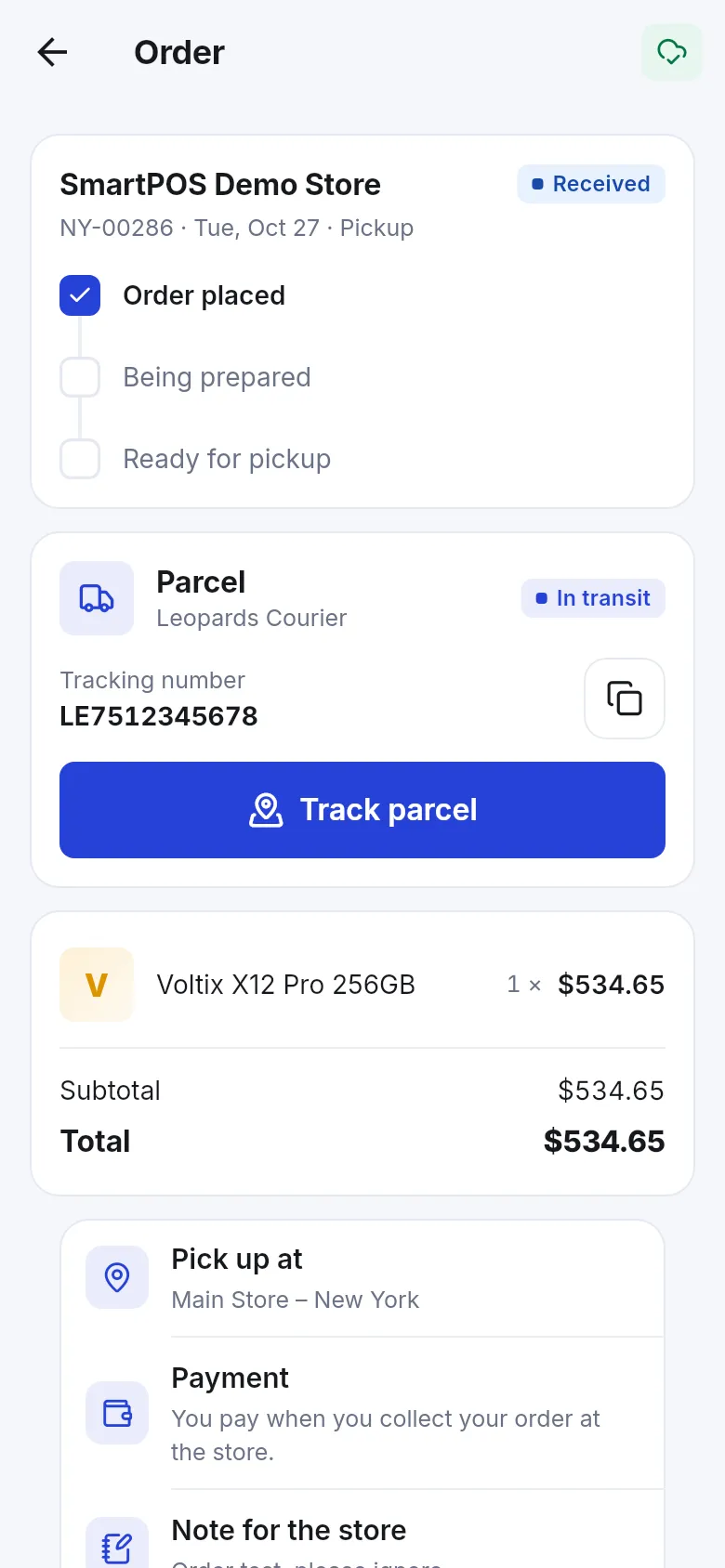
Parcel statuses you may see: Preparing, Booked with the courier, Picked up, In transit, Out for delivery, Delivered, Delivery attempt failed, Returned and Cancelled.
What if I paid by bank transfer?
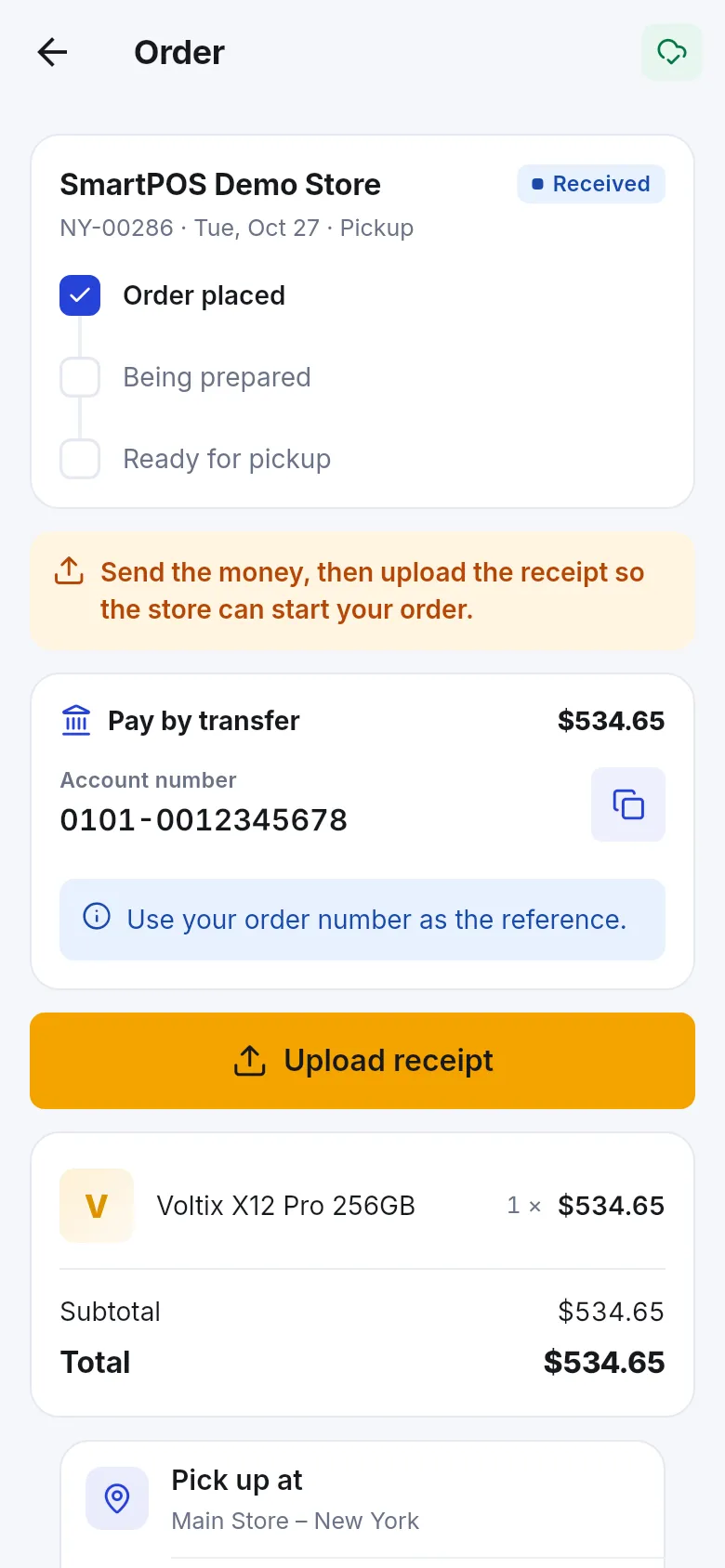
Section titled “What if I paid by bank transfer?”If you chose a transfer when you checked out, the order page shows the account to send the money to and an Upload receipt button. The note says “Send the money, then upload the receipt so the store can start your order.” After you upload, you see Receipt sent. The store is checking it., then Payment approved — or the store’s reason if it did not approve the receipt, with Upload a new receipt.
All the details are on payment methods.
Ask the store about an order
Section titled “Ask the store about an order”At the bottom of the order page, tap Ask about this order. A chat with the store opens with the order attached (“About order …”), so the team knows which order you mean. See message a store.
- Prices and charges are worked out when you place the order. If something changed while you were checking out, the app asks you to check the new total first.
- If you see Order not found, the order may belong to another account. Make sure you are signed in with the e-mail you used to order.
- A completed order also creates a receipt — see your receipts.
Frequently asked questions
Section titled “Frequently asked questions”Where do I see the orders I placed in the app?
Open the store's Home screen and tap My orders. The list shows every order you placed with that store, newest first, with its total and status. Tap an order to open its page with the progress steps, items, pickup or delivery details and payment.
Do I get a notification when my order status changes?
Yes, if you allow it. The app sends one notice for each new step, such as preparing, ready, out for delivery, completed, cancelled or refunded. You choose phone, e-mail or SMS for order updates in Notification settings, and every notice also stays in the app's Notifications inbox.
What does "Waiting for payment" mean on my order?
The store has your order but the payment is not finished. If you chose online payment, tap Pay now and finish on the payment page. If you chose a bank or wallet transfer, send the money and upload the receipt on the order page so the store can start.
Can I cancel an order in the app?
No, there is no cancel button for orders. Message the store from the order page with Ask about this order, or call the store from its store page. If the store cancels it, the status changes to Cancelled and you get a notice.
How do I track a parcel that is being delivered by a courier?
Open the order. When the store books delivery, a Parcel card appears with the courier name, the tracking number and a Track parcel button. Tap Copy to copy the tracking number, or Track parcel to open the courier's tracking page.
Why is my order not in the list?
My orders shows the orders of the store you are looking at. Switch to the other store with the store name at the top of Home. Orders made at the till without the app are receipts, not app orders; find them under Receipts.