

Your store page and store looks in SmartPOS Shopper
Every store you join has a store page in SmartPOS Shopper. It holds your store card, a Message store button, shortcuts to products, your account and bookings, what the store offers, its opening hours, locations and online links, and the switch for news by e-mail. Stores also choose one of five looks for their screens in the app.
How do I open a store page?
Section titled “How do I open a store page?”- Account › My stores, then tap the store.
- On the store’s Home, tap Store info (Hours and locations).
- In Find stores, tap a store’s card to see its page before joining.
What is on the store page?
Section titled “What is on the store page?”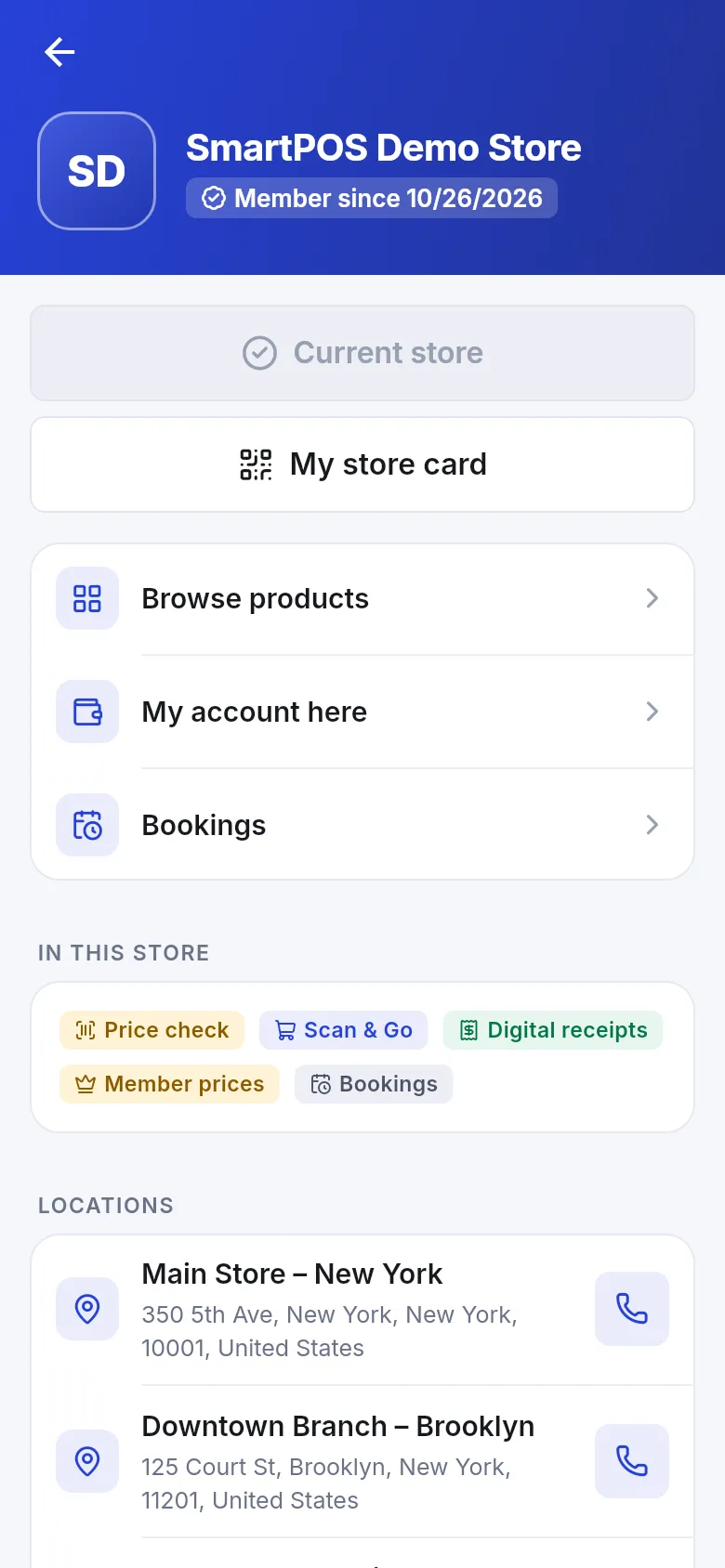
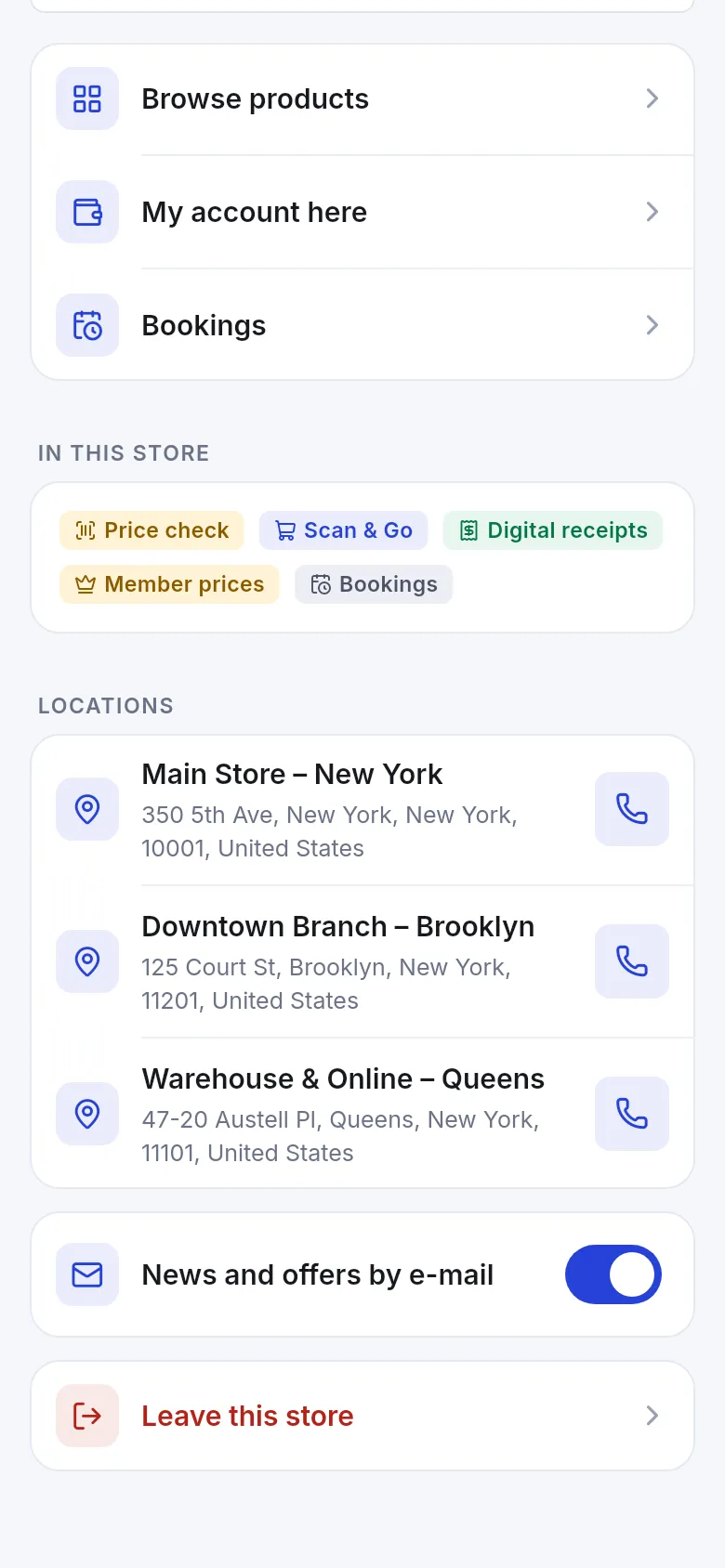
From top to bottom:
| Part | What it does |
|---|---|
| Header | Store name, logo and Member since [date] (or Waiting for approval) |
| Current store / Shop here | Shows that this is the store you are using now, or makes it your current store |
| My store card | Opens your QR card to show at the counter. See My store card. |
| Message store | Opens a chat with the store, with a number for unread replies. See Message a store. Only if the store accepts messages. |
| Browse products | The store’s product list. See Browse products. |
| My account here | Balance due, reward points and purchases at this store. See Your account at a store. |
| Bookings | Tables or appointments, if the store takes bookings |
| In this store | Chips such as Price check, Scan & Go, Digital receipts, Member prices, Reward points, Bookings |
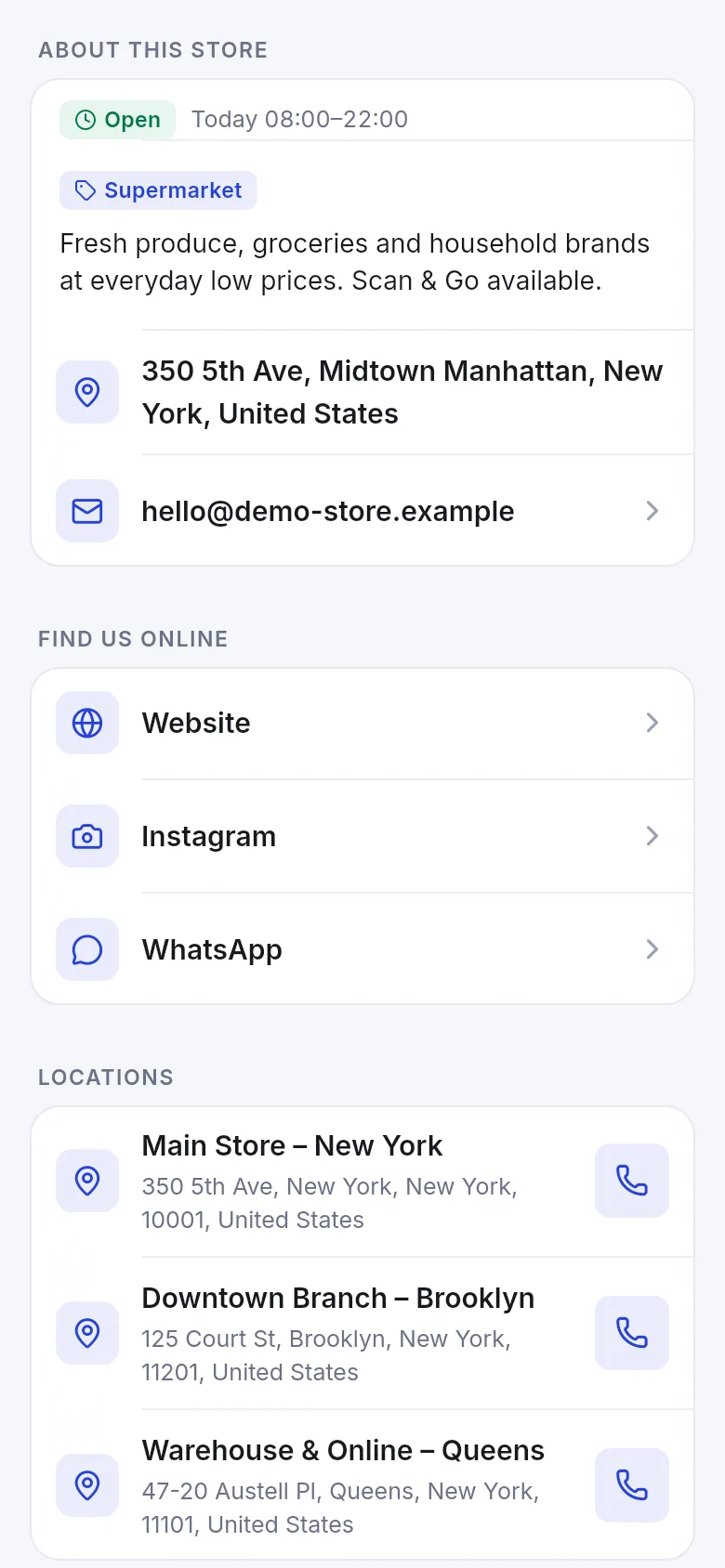
| About this store | Open or closed now, today’s hours, category, description, address and e-mail |
| Find us online | Website, social pages and WhatsApp links, if the store added them |
| Locations | Every branch with its address and a call button |
| News and offers by e-mail | Your e-mail choice for this store only |
| Leave this store | Ends your membership (asks first) |
How do I leave a store?
Section titled “How do I leave a store?”- Open the store page and scroll to the bottom.
- Tap Leave this store.
- Read Leave [store]? – “Your Scan & Go cart here is removed. Your past receipts stay with the store.”
- Confirm. The app says You left the store.
You can join the same store again later with its code. The store keeps your customer history, so your past purchases are still linked to you.
Store looks
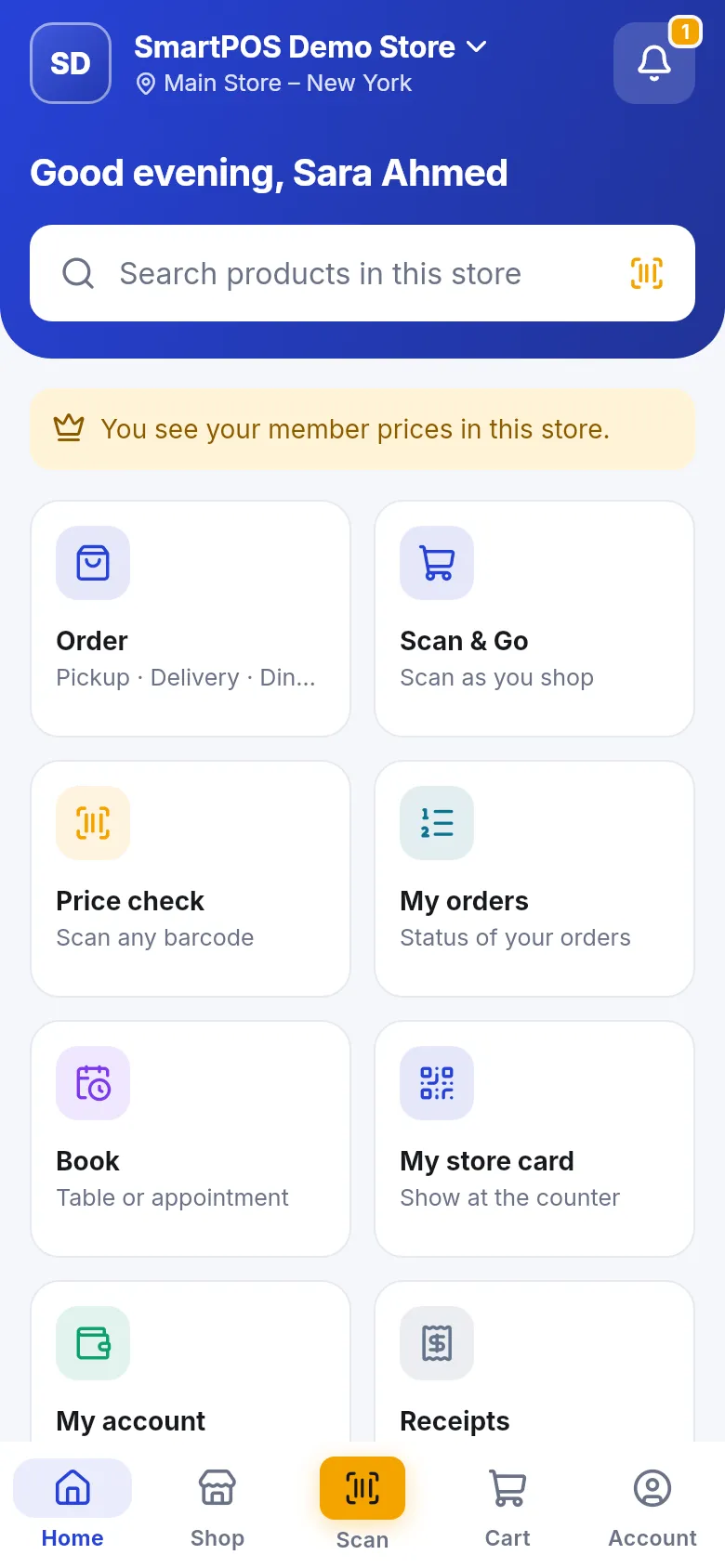
Section titled “Store looks”Each store chooses how its Home, Shop and Product screens look in your app, plus its own accent color. There are five looks. Whatever the look, the same features are in the same places: search, tiles or quick actions, categories, the cart bar and the bottom tabs.
The standard look: a colored header with your greeting and search, then the member banner and large tiles. Many stores use it.
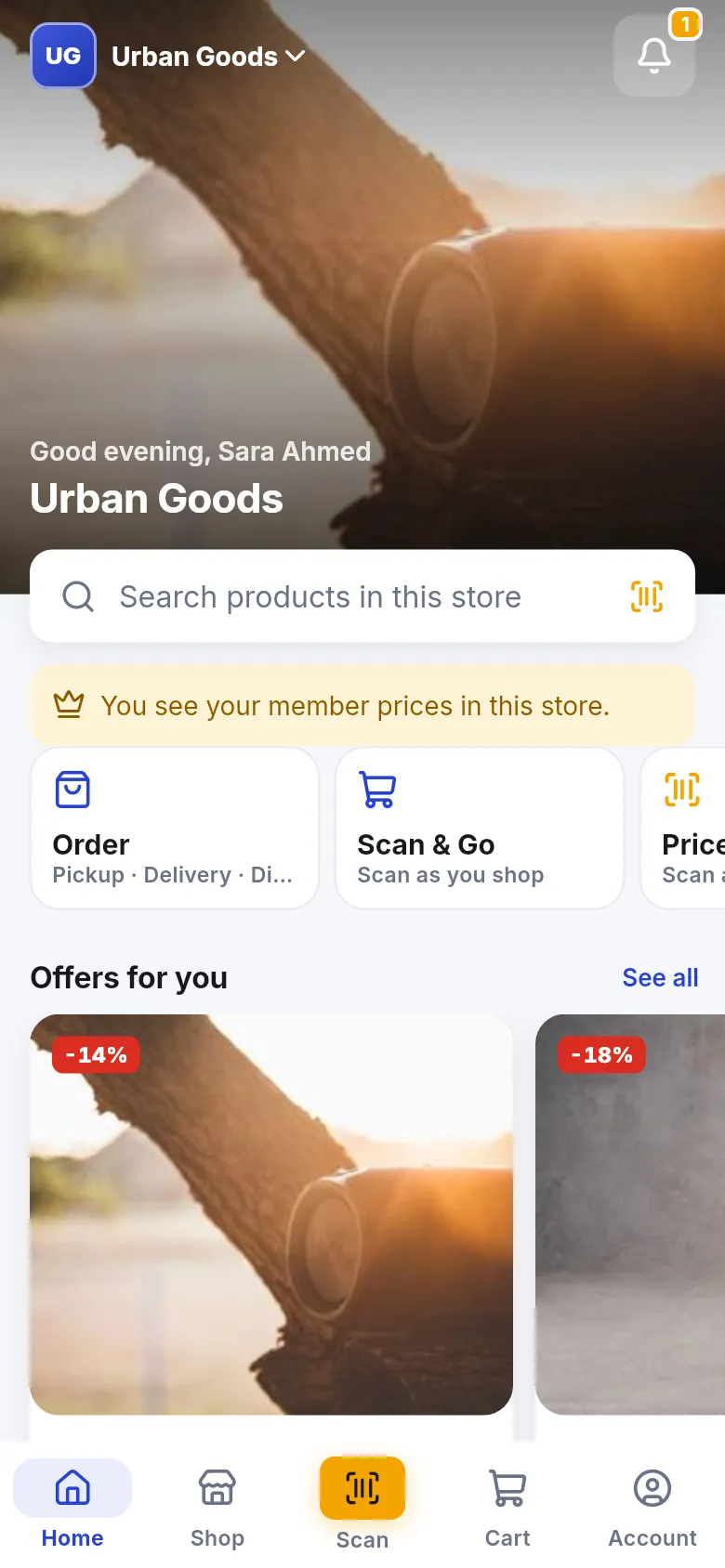
A large photo header with the store name, a row of quick actions and big picture cards for offers.
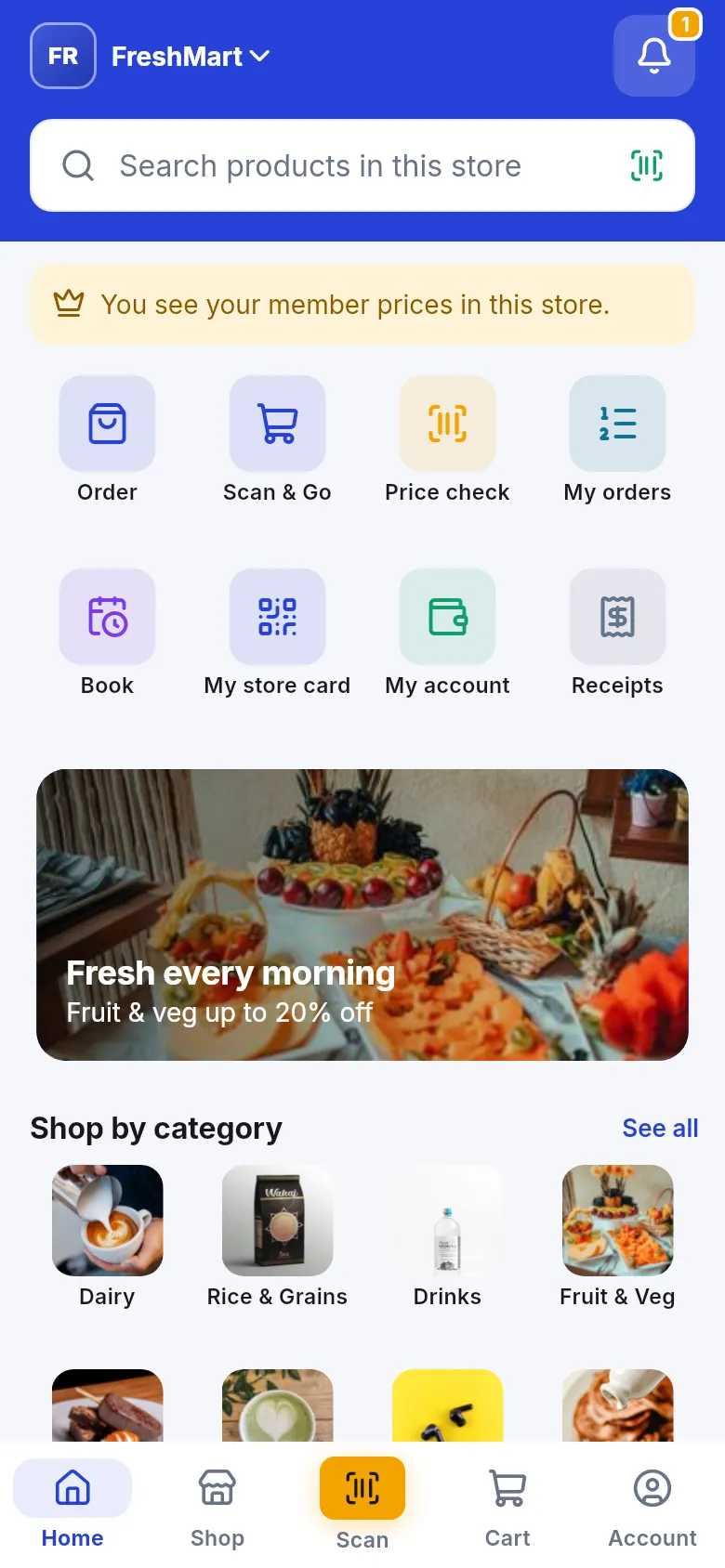
Made for supermarkets, grocery stores and pharmacies: compact icon row, promo banner and Shop by category with photos.
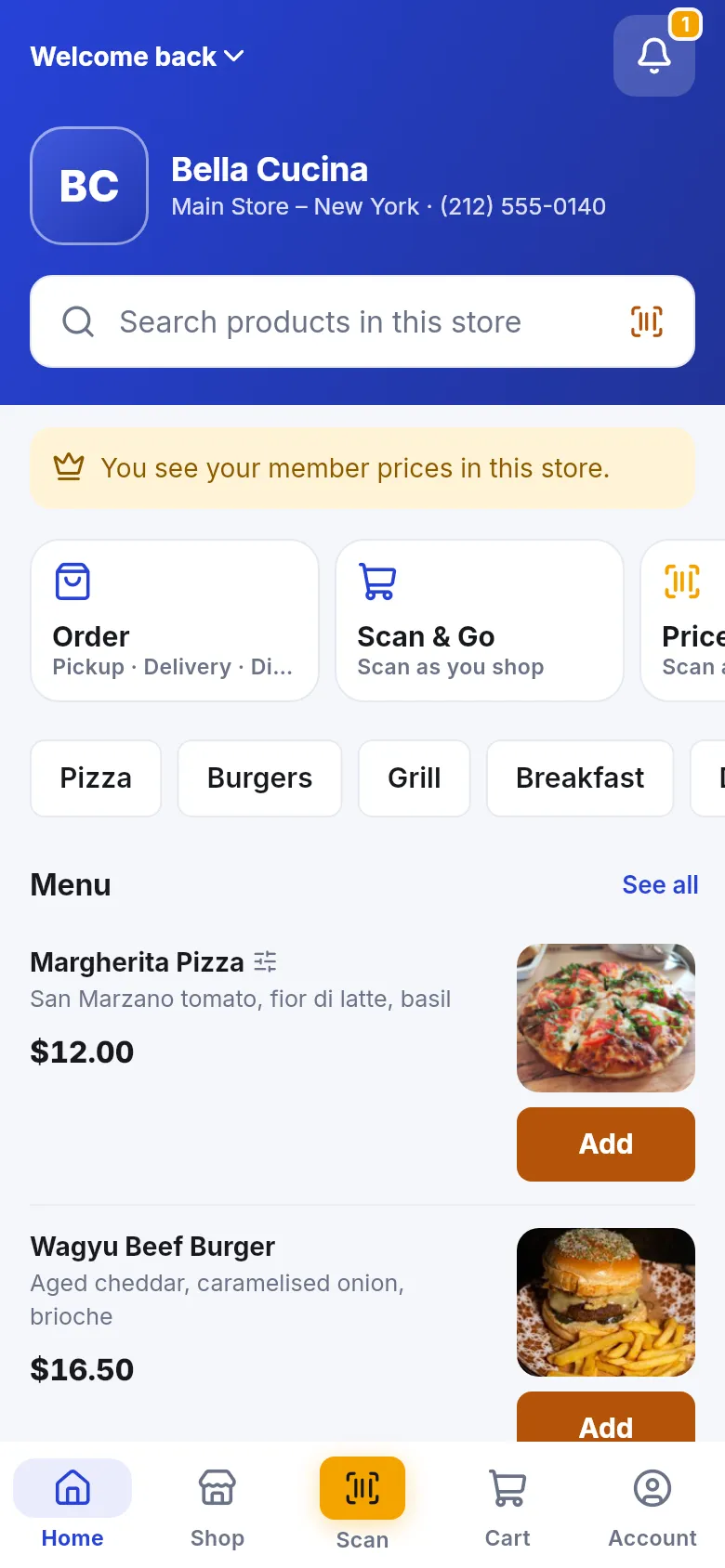
Made for restaurants and cafés: menu sections like Pizza or Burgers and dishes with photos and an Add button.
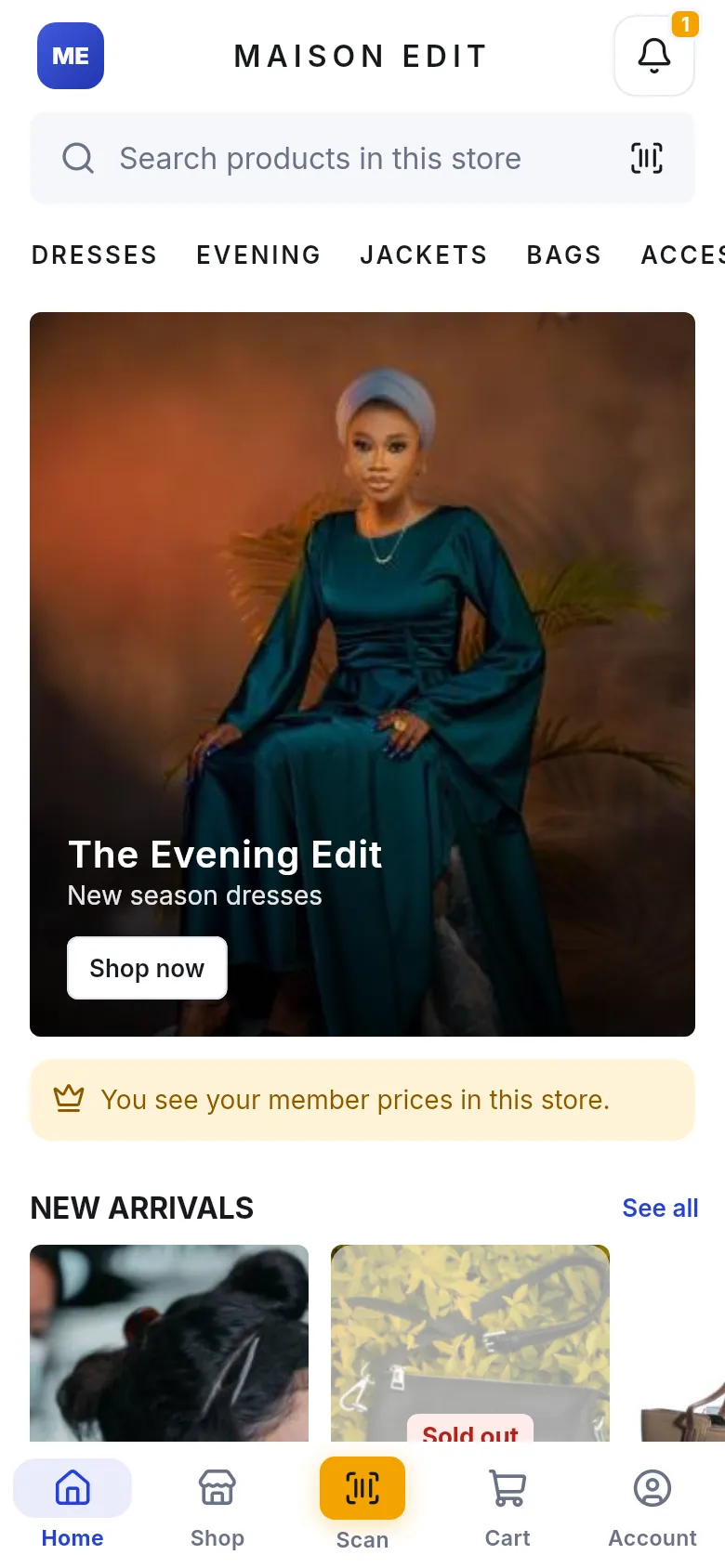
Made for fashion and beauty: large photos, a banner with Shop now and New arrivals.
Frequently asked questions
Section titled “Frequently asked questions”How do I open a store's page?
Go to Account › My stores and tap the store, or tap Store info on the store's Home screen. From Find stores, tap a store card to see its page before you join.
Why does one store look completely different from another?
Each store picks a look for its Home, Shop and Product screens - Classic, Editorial, Market, Menu or Boutique - and its own accent color. The buttons and features work the same in every look.
Can I change how a store looks in my app?
No. The store chooses its look. You can switch the whole app between light and dark under Account › Appearance, and that works in every store look.
What do the chips under In this store mean?
They list what this store offers in the app, such as Price check, Scan & Go, Digital receipts, Member prices, Reward points and Bookings. If a feature isn't listed, the store doesn't offer it in the app.
How do I call a store?
Open the store page, scroll to Locations and tap the phone button next to the location you want. Your phone's dialer opens with the number.
What happens if I tap Leave this store?
After you confirm, your membership ends, your Scan & Go cart at that store is removed and any open store card or cart code stops working. Your past receipts stay with the store, and if you join again later the store finds your history.