

Pay for your order - every payment option
SmartPOS Shopper offers several ways to pay for an order: pay at the store or table, cash on delivery, online card payment on a secure payment page, and bank or wallet transfer with a receipt upload. Which payment options you see depends on the store and on how you get your order. This page explains each one.
Which payment options can I use?
Section titled “Which payment options can I use?”Each store switches on the options it wants. The list at checkout under Payment only shows options that fit your order.
| Option in the app | Pickup | Delivery | Dine-in | When you pay |
|---|---|---|---|---|
| Pay at the store | Yes | — | — | At the counter when you collect your order. |
| Cash on delivery | — | Yes | — | To the rider when your order arrives. |
| Pay at the table | — | — | Yes | After your meal, at the table or the counter. |
| Online payment (card) | If offered | If offered | If offered | Right after you place the order, on a secure payment page. |
| Bank or wallet transfer | If offered | If offered | If offered | You send the money, then upload the receipt. |
Online and transfer options carry the name the store gave them, for example the name of its bank or “Card”.
Pay at the store, on delivery or at the table
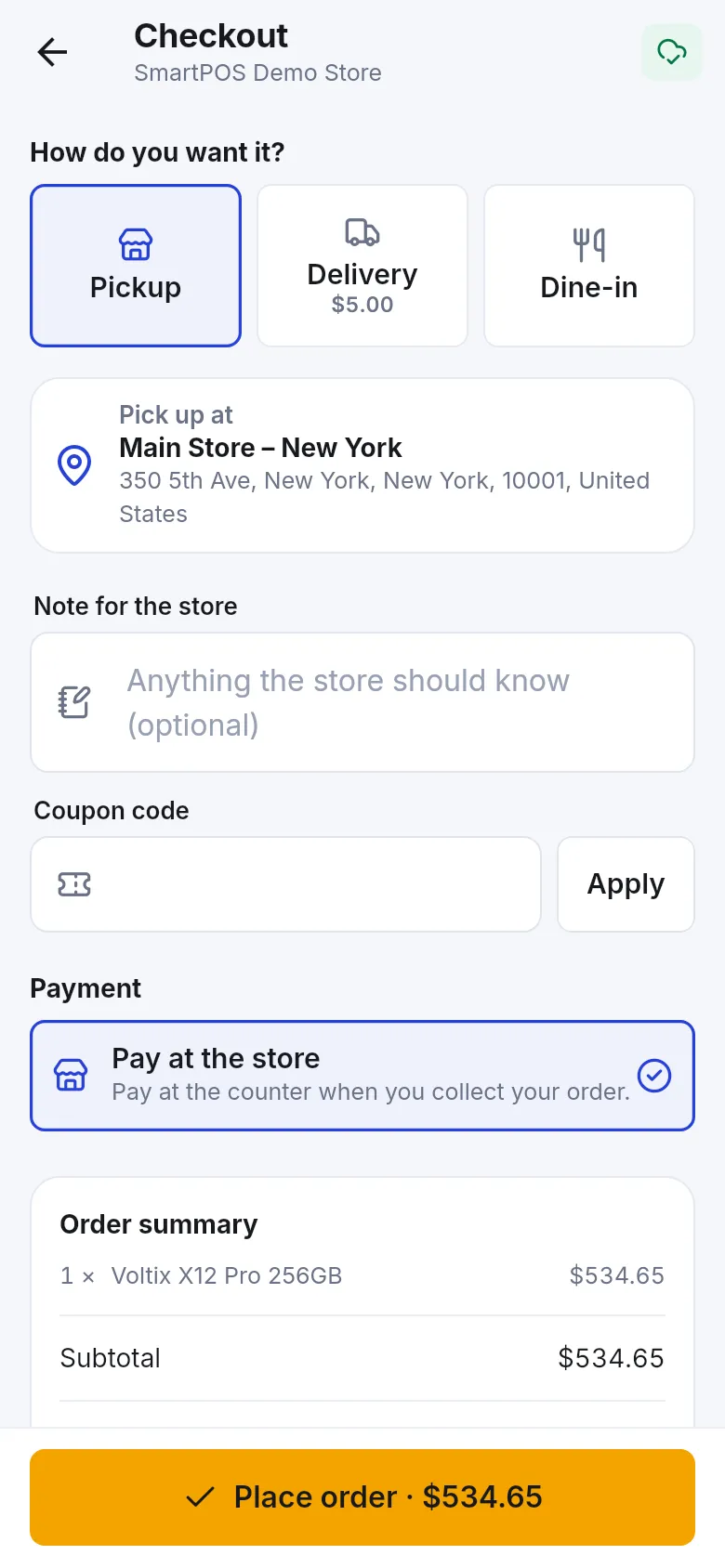
Section titled “Pay at the store, on delivery or at the table”- At checkout, under Payment, tap Pay at the store, Cash on delivery or Pay at the table.
- Tap Place order.
- Pay when you collect, when the rider arrives, or after your meal. The store uses its normal payment methods there.
Your receipt appears in Receipts once the store completes the sale.
Pay online with a card
Section titled “Pay online with a card”- At checkout, choose the store’s online payment option and tap Place order.
- The store’s secure payment page opens. Enter your card details there and confirm.
- Return to the app. The order screen shows Finish paying on the payment page. This screen updates by itself.
- If you closed the page by mistake, tap Open the payment page or Pay now on the order to try again.
Until the payment is done, the order shows Waiting for payment (or Finish your payment). After that it moves to Received and the store starts preparing it.
Pay by bank or wallet transfer and upload the receipt
Section titled “Pay by bank or wallet transfer and upload the receipt”Some stores let you pay by transfer to their bank account or mobile wallet. You place the order first, send the money, then upload proof of payment so the store can start your order.
- At checkout, choose the transfer option. The app shows the account details and says After placing the order, send the money to this account and upload the receipt on the order page.
- Tap Place order.
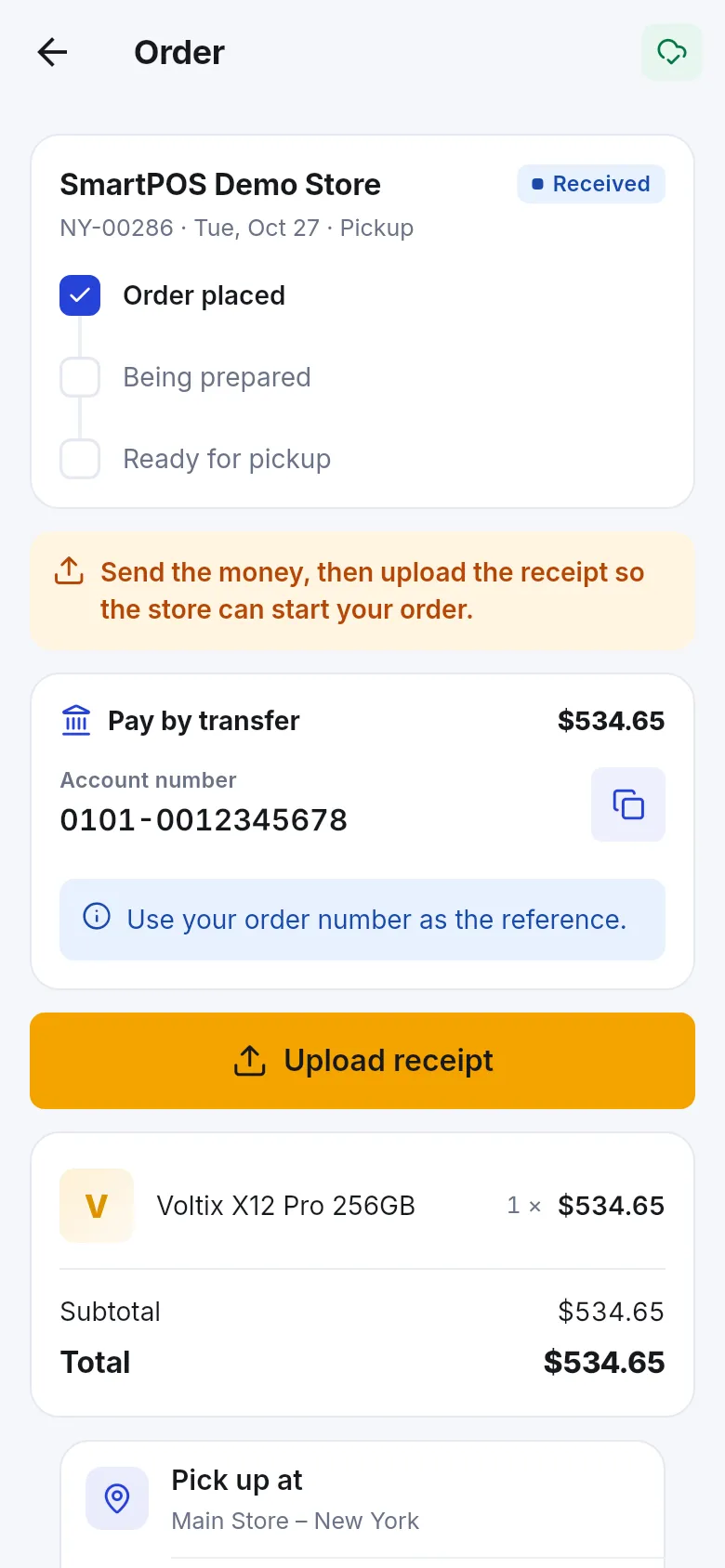
- On the order page, under Pay by transfer, you see the account details and the amount. Tap the copy button next to the account number or IBAN, or scan the QR code in your banking app (Or scan this code in your banking app) where the store provides one.
- Follow the store’s instructions, for example Use your order number as the reference.
- Send the money from your bank or wallet app.
- Back on the order page, tap Upload receipt.
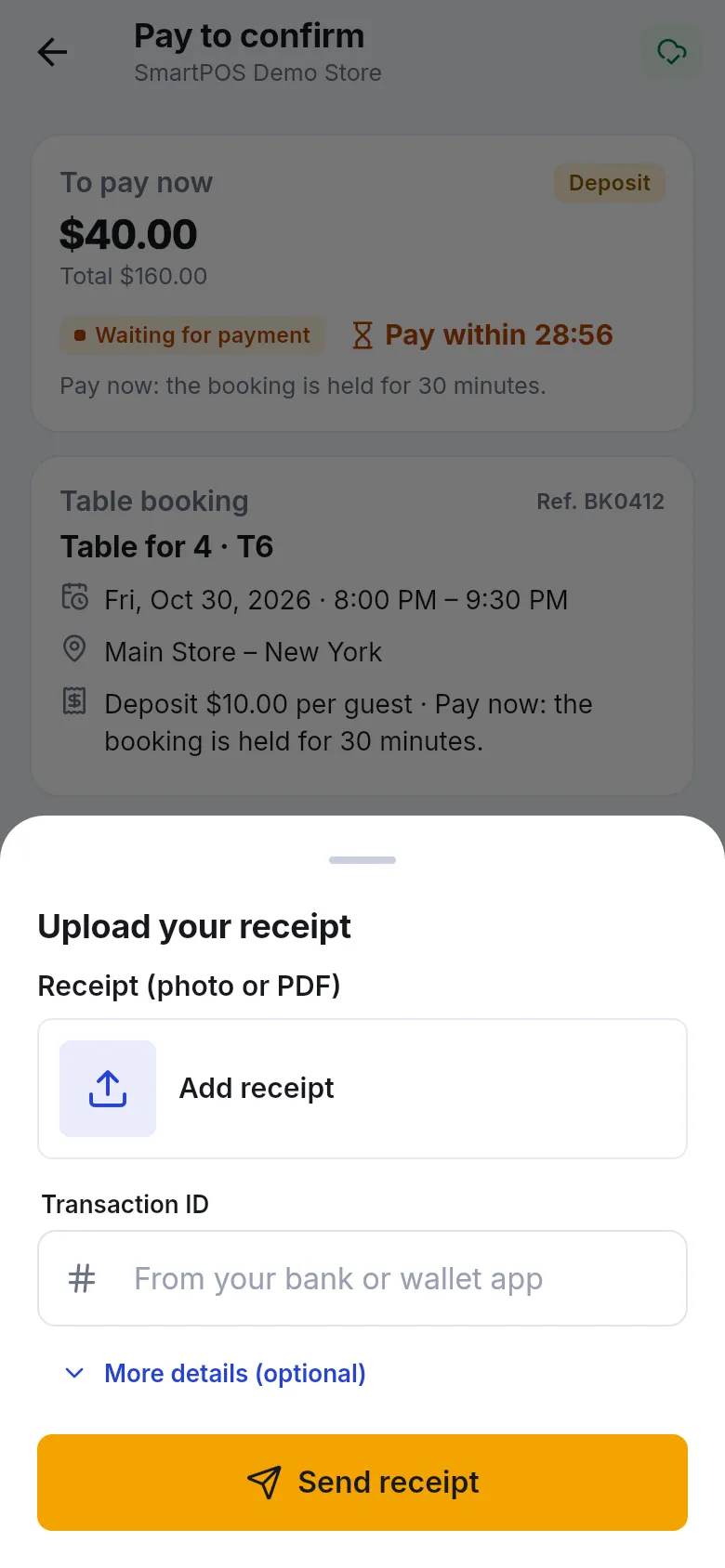
- Tap Add receipt, then Take a photo, Choose from gallery or Choose a file (PDF).
- Type the Transaction ID from your bank or wallet app (required).
- Optional: open More details (optional) to add Amount sent, Date paid, Sender name, Sender account or a Note.
- Tap Send receipt. You see Receipt sent. The store will check it.
What do the receipt statuses mean?
Section titled “What do the receipt statuses mean?”| Status on the order | Meaning | What to do |
|---|---|---|
| Send the money, then upload the receipt so the store can start your order. | The store is waiting for your payment proof. | Pay and tap Upload receipt. |
| Receipt sent. The store is checking it. | The store has your receipt. | Wait. You get a notification when it changes. |
| Payment approved | The store confirmed your payment. | Nothing. Your order goes ahead. |
| Receipt not approved (with a reason) | Something didn’t match, for example the amount. | Fix it and tap Upload a new receipt. |
Use store credit or a gift card
Section titled “Use store credit or a gift card”Store credit and gift cards can pay for part or all of an order. They appear at checkout under Store credit & gift cards, above Payment. If your wallet covers the whole order, you see Your wallet covers the whole order. Nothing to pay. See store credit and gift cards.
What about Scan & Go purchases?
Section titled “What about Scan & Go purchases?”When you check out at the counter with Scan & Go or your store card, you pay the cashier the normal way (cash, card or whatever the store accepts). See check out at the counter.
Frequently asked questions
Section titled “Frequently asked questions”Which payment options will I get?
It depends on the store and on how you get your order. Pickup usually offers Pay at the store, delivery offers Cash on delivery, and dine-in offers Pay at the table. Some stores also offer online card payment or a bank or wallet transfer.
How do I pay for an order by bank transfer?
Choose the transfer option at checkout and place your order. Then send the money from your bank or wallet app to the account shown, and on the order page tap Upload receipt, add a photo or PDF of the receipt, type the Transaction ID and tap Send receipt.
What files can I upload as a payment receipt?
A photo or PDF up to 8 MB, in JPG, PNG, WEBP or PDF format. A screenshot from your banking app works well.
How long does the store take to approve my receipt?
The store checks it by hand, so it can take a little while during busy hours. The order page shows "Receipt sent. The store is checking it." until they approve it, and you get a notification when it changes.
What if the store rejects my receipt?
The order page shows "Receipt not approved" and, if the store gave one, the reason. Fix the problem (for example the wrong amount) and tap Upload a new receipt.
Does the app store my card details?
No. Online payments open the store's secure payment page. Your card details are entered there, not in the app.
Why do I see "No payment option is available for this order"?
The store has not set up a payment option for this way of ordering. Try another option such as Pickup, or contact the store.
Can I pay part with store credit or a gift card?
Yes, if the store accepts them in the app. Use them under Store credit & gift cards at checkout; you then pay the rest with the payment option you choose.